Create your first QR code in 4 simple steps. All QR codes are dynamic - you can update the destination anytime without reprinting.
Click +Create QR Code
From your dashboard, click the +Create QR Code button in the top right corner.
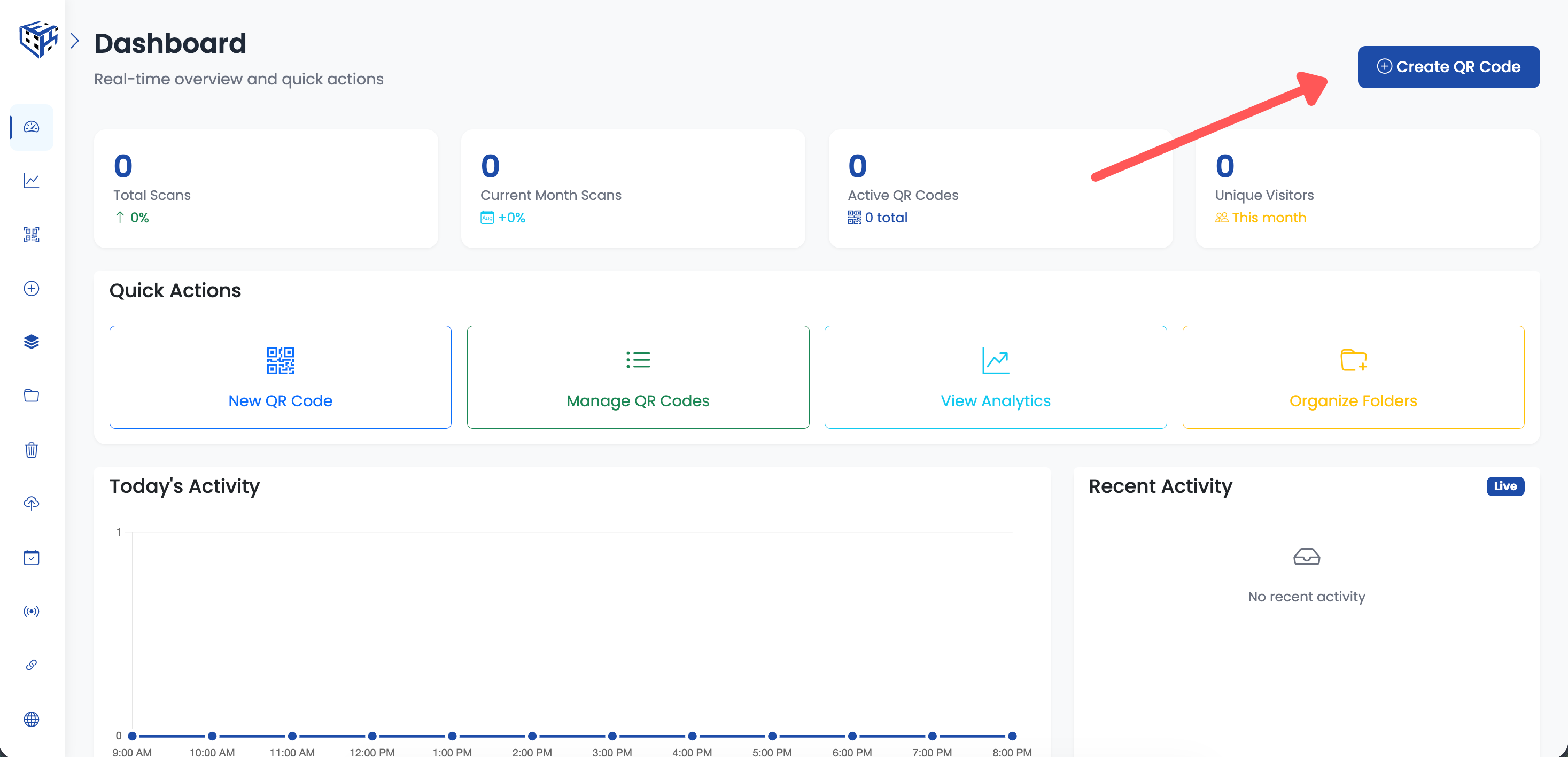
Click the +Create QR Code button
Select QR Code Type
Choose from 18 different QR code types based on your needs.
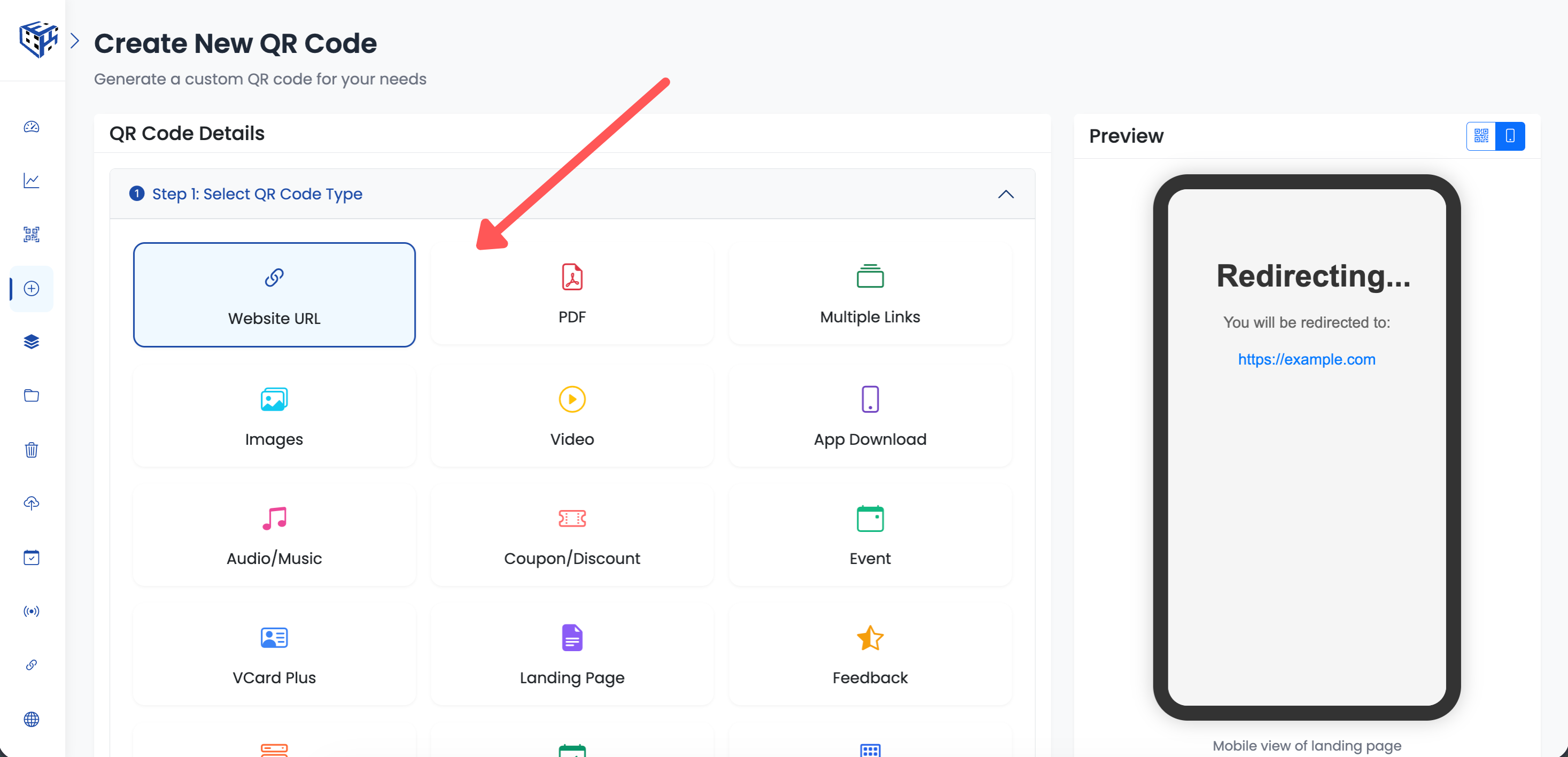
Select your QR code type
| Category | QR Types |
|---|---|
| Links | Website URL, Multi-Link, Landing Page |
| Files | PDF, Images, Video, Audio |
| Business | vCard Plus, Business Page, Menu, Booking |
| Marketing | Coupon, Event, Feedback |
| Utility | WiFi, App Download |
| Payments | EPC (Europe), PayNow (Singapore) |
- QR Code Types - Detailed guides for each QR code type
QR Code Information
Enter the basic details for your QR code.
| Field | Description |
|---|---|
| QR Code Name | A descriptive name for easy identification (max 60 characters) |
| Content Fields | Varies by QR type - URL, PDF file, contact info, etc. |
| Enable Preview Page | Shows destination URL to visitors before redirecting |
| Enable Smart App Opening | Automatically opens in apps when available on mobile |
Tip
Use clear names like "Summer Sale 2025" or "Main Menu - Downtown" to easily find your QR codes later.
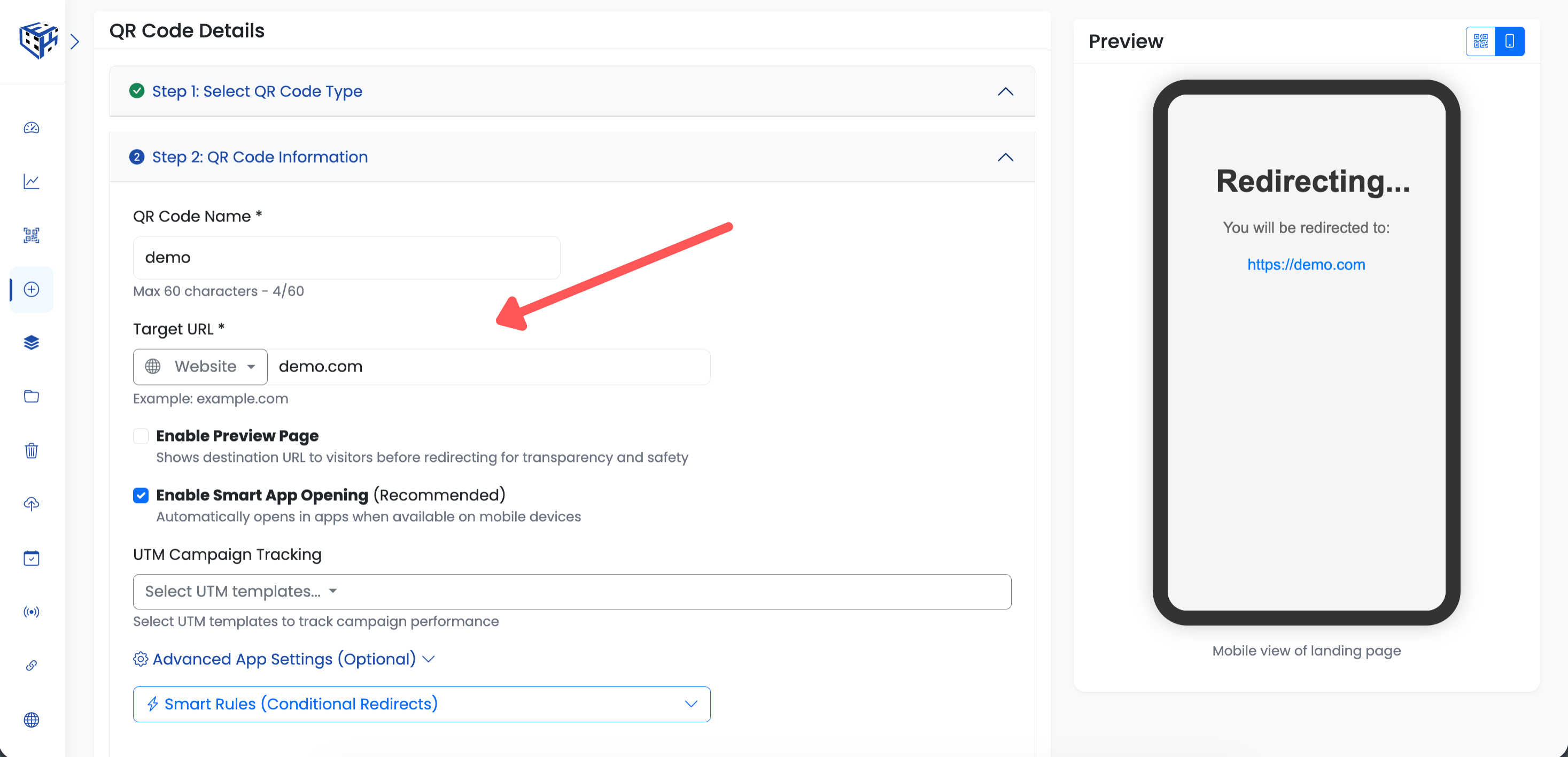
Enter your QR code details
Advanced Settings
Configure optional advanced features for your QR code.
| Setting | Description |
|---|---|
| Domain | Select which domain to use for your QR code URL |
| Custom Alias | Create a custom short URL or leave empty for auto-generated |
| Folder | Organize your QR code into a folder |
| Marketing Pixels | Track conversions with Facebook, Google, etc. |
| Social Media Preview | Custom title, description, and image for social sharing |
- How to add a custom domain? - Use your own domain
- Custom Alias - Create custom short URLs
- How to create a folder? - Organize your QR codes
- Marketing Pixel Tracking - Track conversions
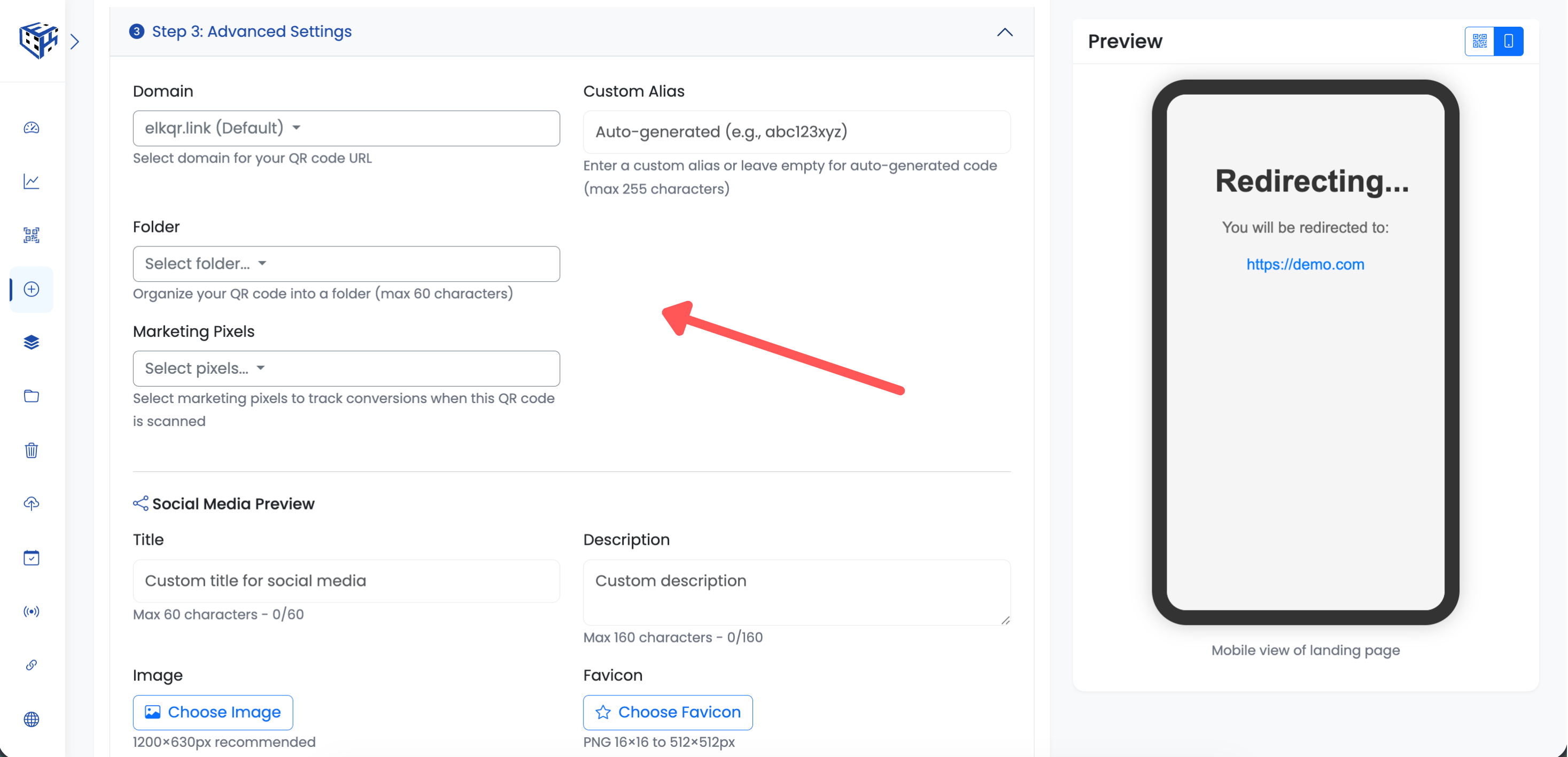
Configure advanced settings
Additional protection and scheduling options are also available:
- How do I limit the number of scans? - Limit how many times QR code can be scanned
- How do I schedule QR code availability? - Set start and end dates
- How do I password protect my QR code? - Require password to access
Customization
Customize your QR code with colors, patterns, shapes, and your logo. You can also adjust this later after creating your QR code.
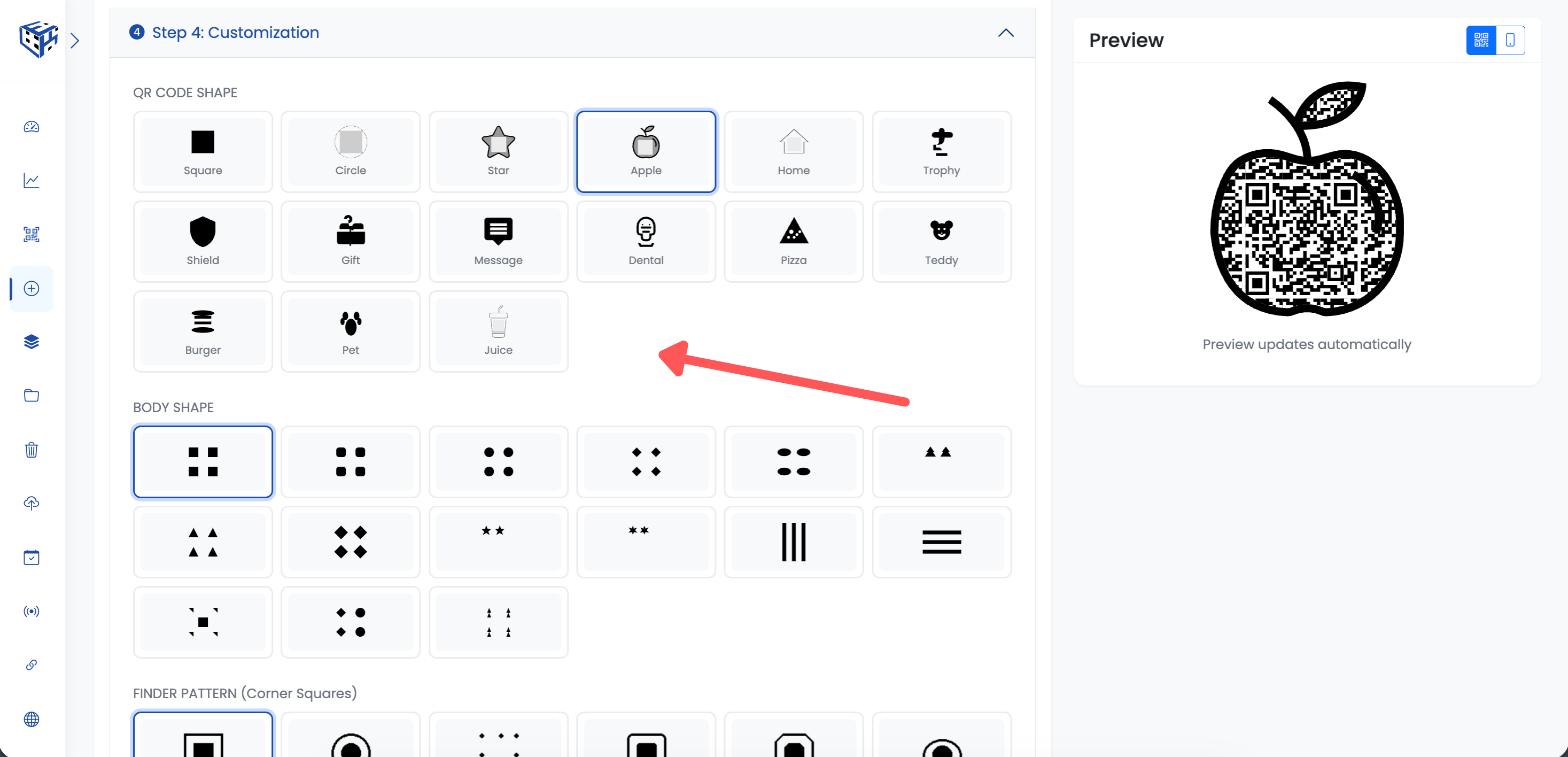
Customize colors, shapes, and logo
Create QR Code
Click the Create QR Code button at the bottom to generate your QR code. You can download it in PNG, JPEG, WebP, or SVG format.
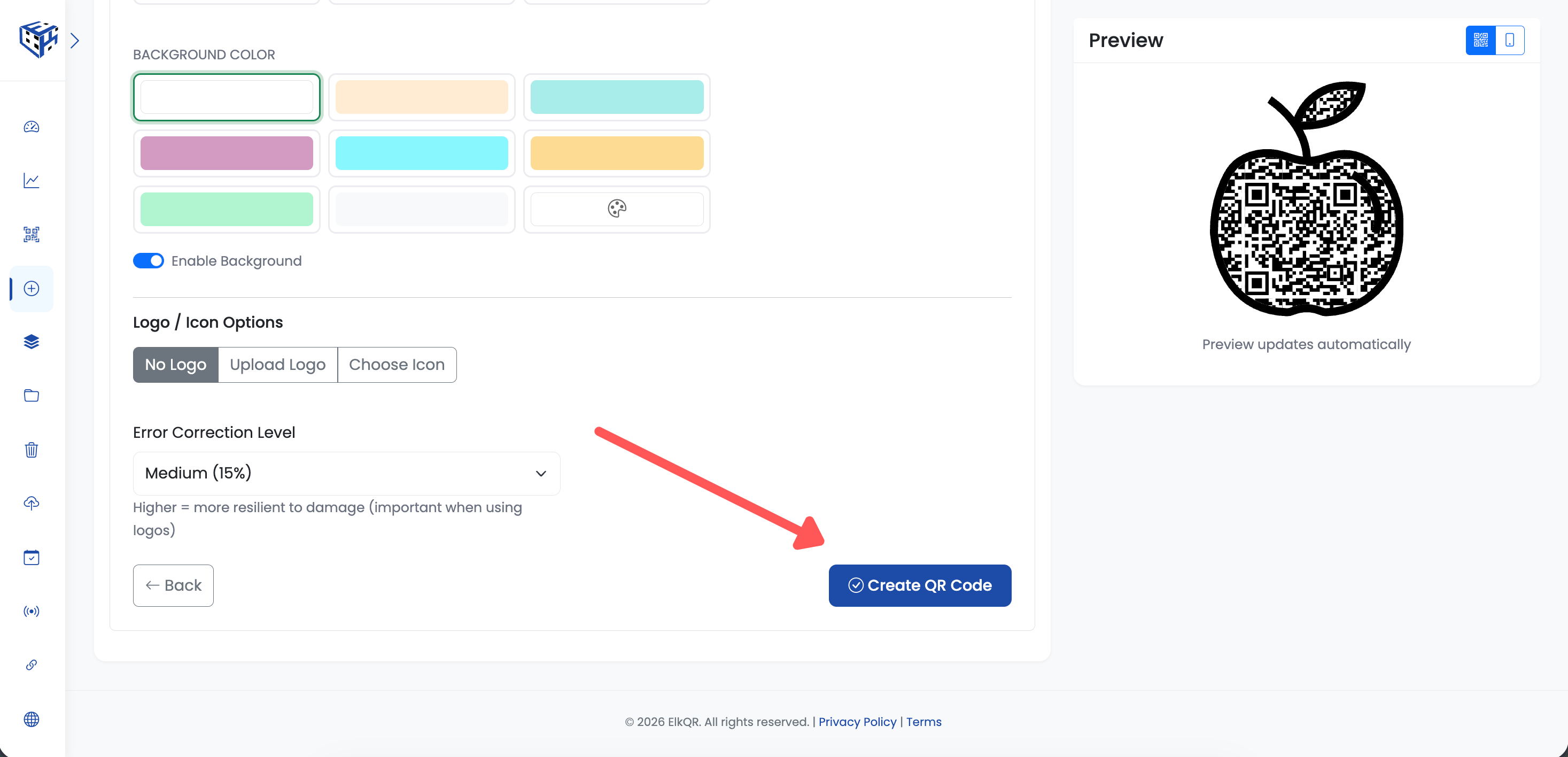
Click Create QR Code
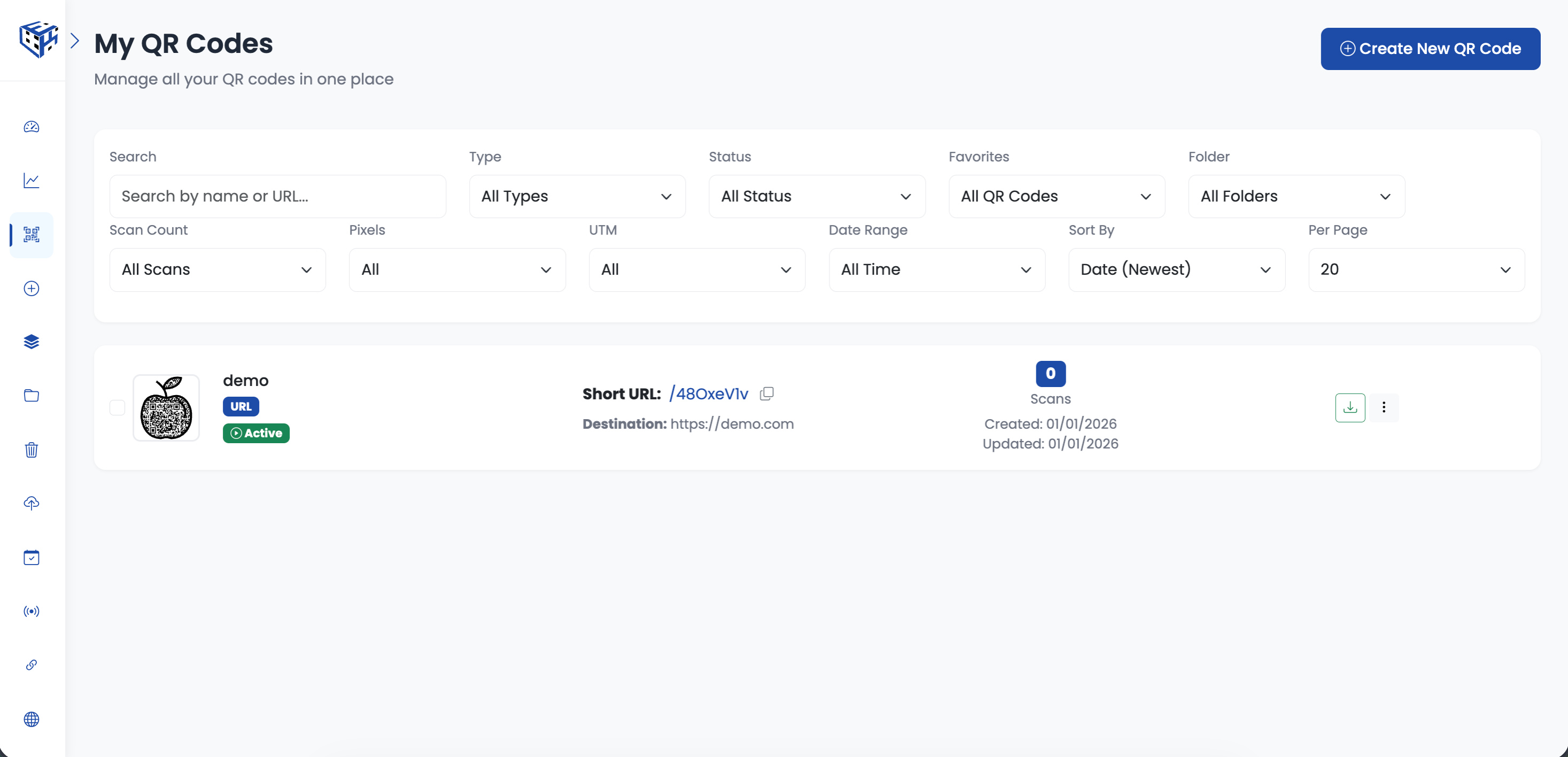
Your QR code is ready!
Still facing difficulties?
Click here to contact our support team for assistance