Organize your QR codes into folders by campaign, client, project, or any criteria.
Go to Folders Page
Click "Folder" in the left sidebar menu to open the Folders page.
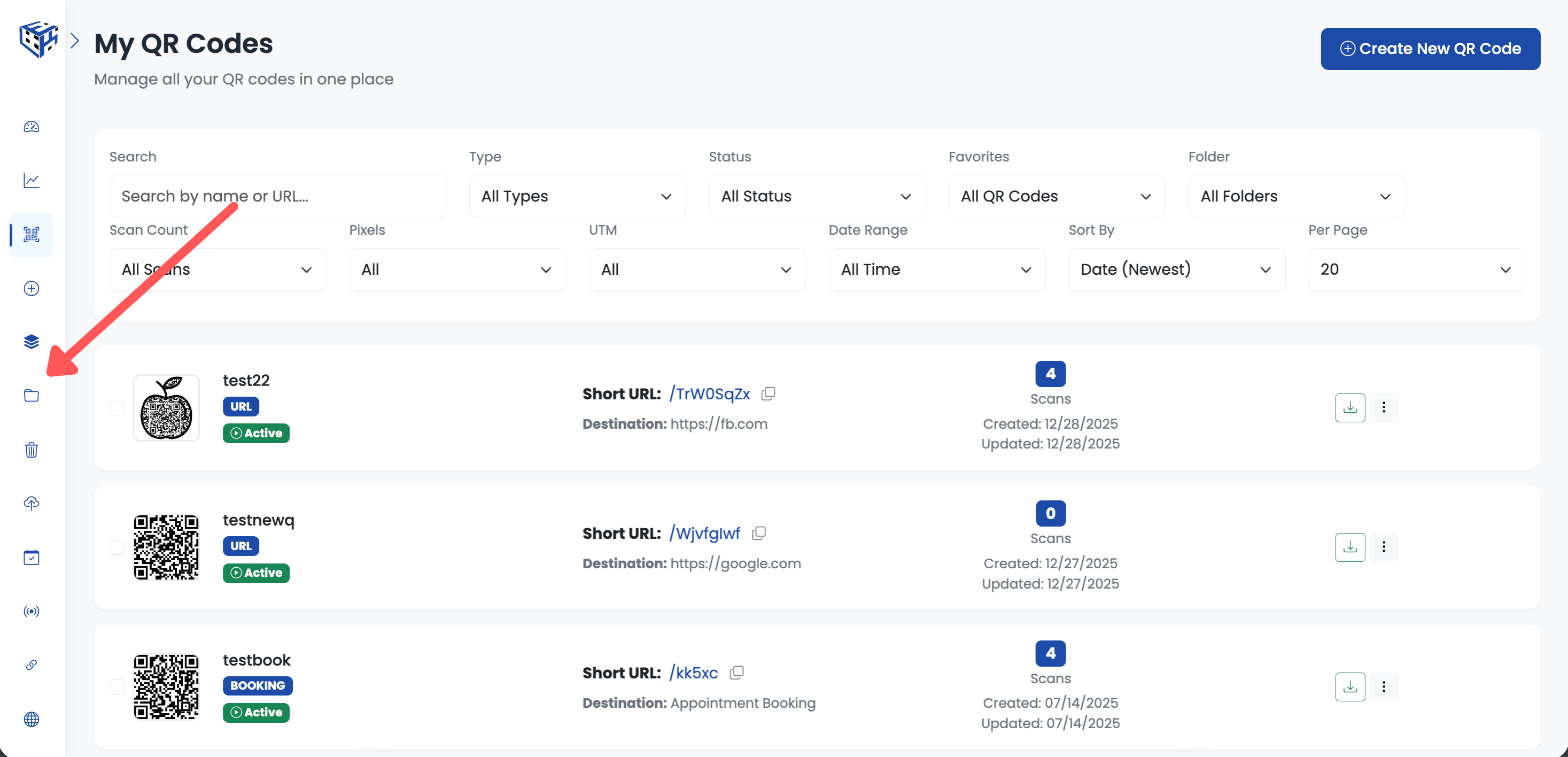
Click Folder in the left sidebar
Click Create New Folder
Click the "Create New Folder" button in the top right corner.
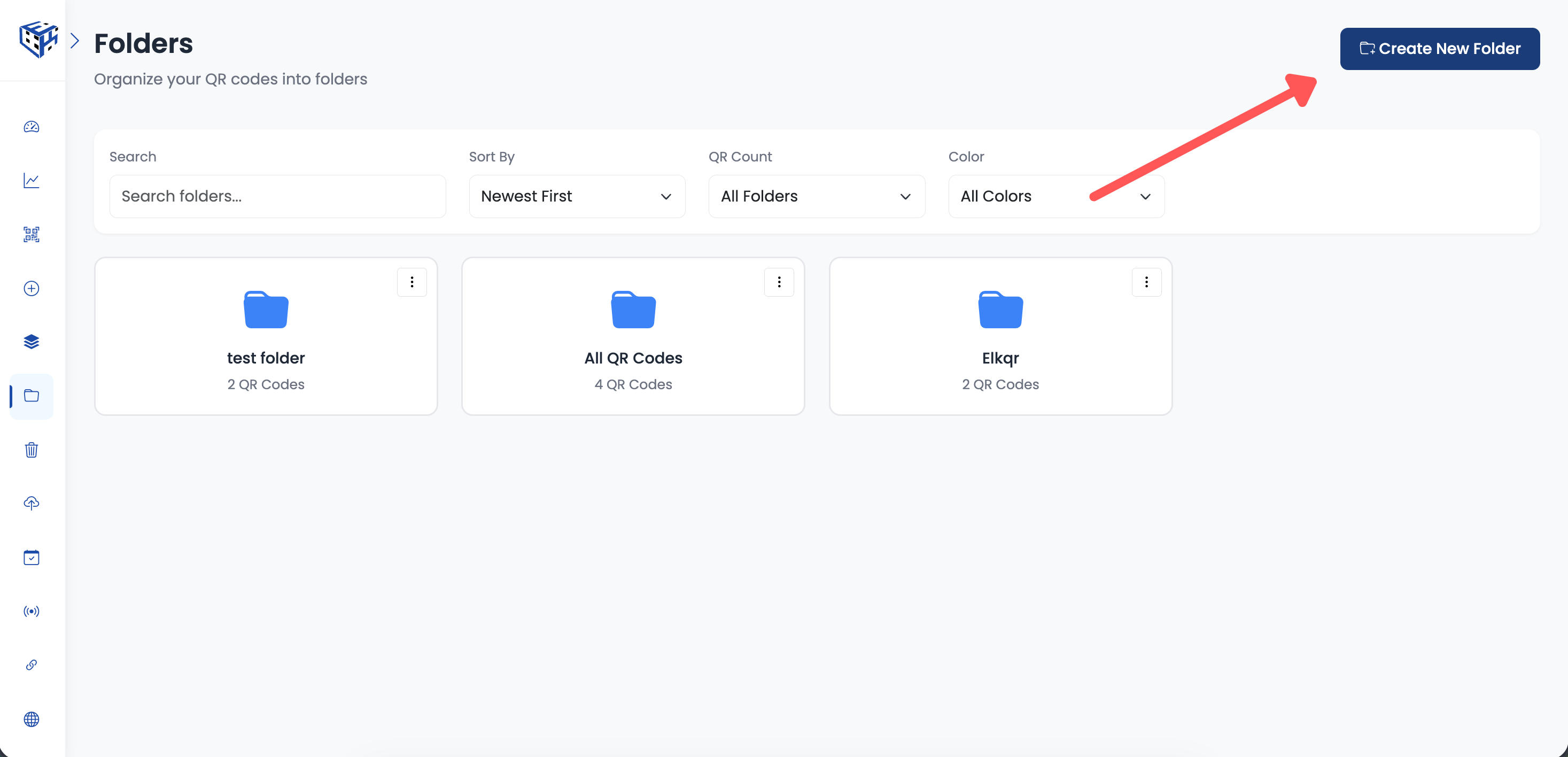
Click Create New Folder (top right)
Enter Folder Details
A popup appears with the following options:
| Field | Description |
|---|---|
| Folder Name | Enter a descriptive name (max 60 characters) |
| Folder Color | Choose from Blue, Green, Purple, Yellow, or Red |
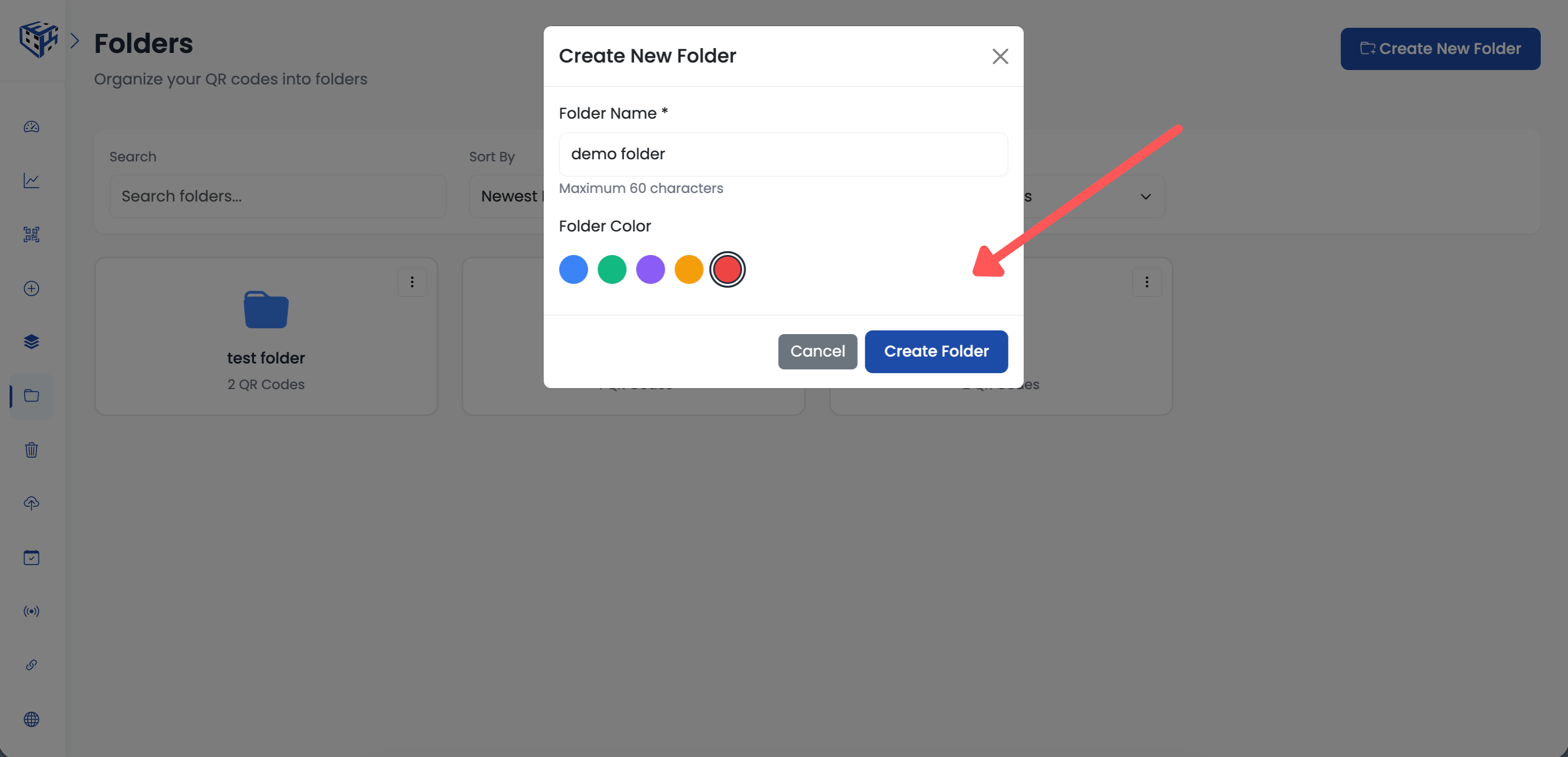
Enter folder name and choose color
Click Create Folder
Click the "Create Folder" button. Your new folder appears in the Folders page grid.
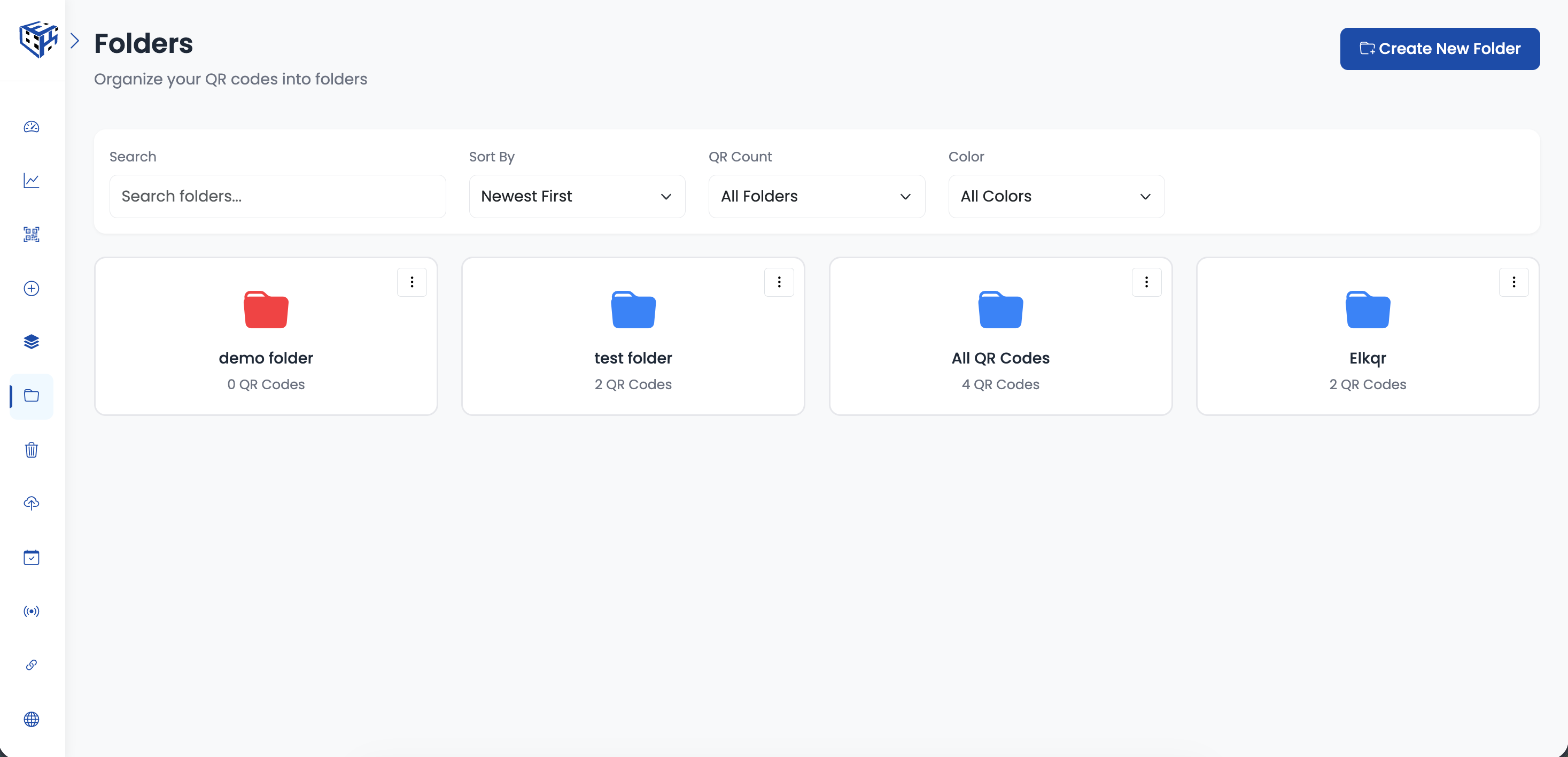
Click Create Folder to finish
Example Folder Names
| Folder Name | Use Case |
|---|---|
| Summer Campaign 2025 | Seasonal marketing QR codes |
| Client - Acme Corp | Client-specific QR codes |
| Restaurant Menus | All menu QR codes |
| Product Labels | Product packaging QR codes |
Note
Folders are workspace-specific. You need editor or owner permissions to create folders.
- Folders & Organization - Feature overview and benefits
- How to Move QR Codes to a Folder? - Move single or multiple QR codes
Still facing difficulties?
Click here to contact our support team for assistance