Organize your QR codes into folders. Move existing QR codes or assign a folder during creation.
Move Single QR Code
Click the 3-dots menu (⋮) on any QR code card and select "Move to Folder".
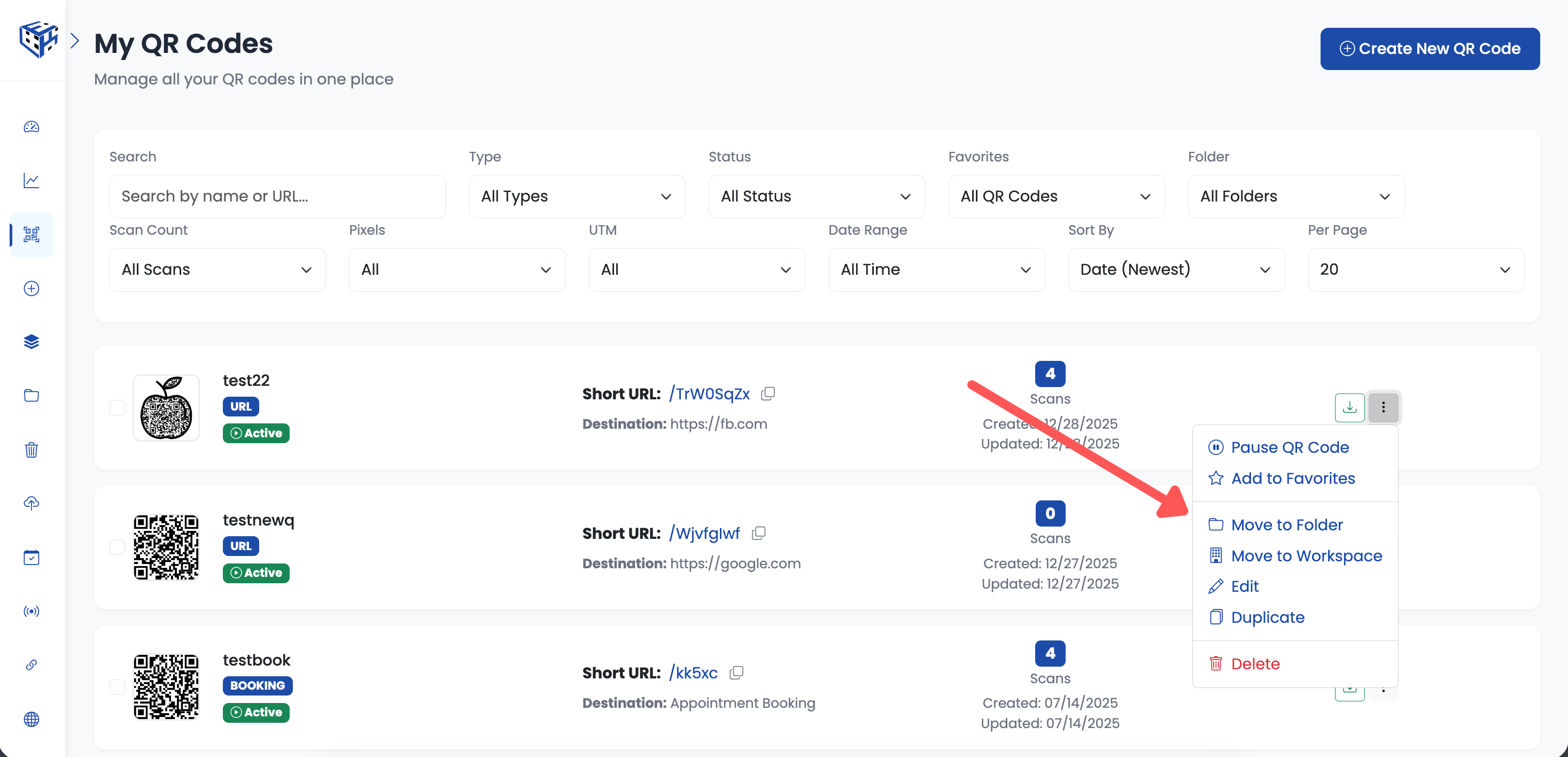
Click 3-dots menu → Move to Folder
A popup appears with your folders. Select the destination folder and the QR code is moved instantly.
.png)
Select folder from the popup
Bulk Move Multiple QR Codes
Select multiple QR codes using checkboxes. A bulk operations toolbar appears below the filters. Click "Folder".

Select QR codes → Click Move to Folder in toolbar
The same folder popup appears. Select the destination and all selected QR codes are moved.
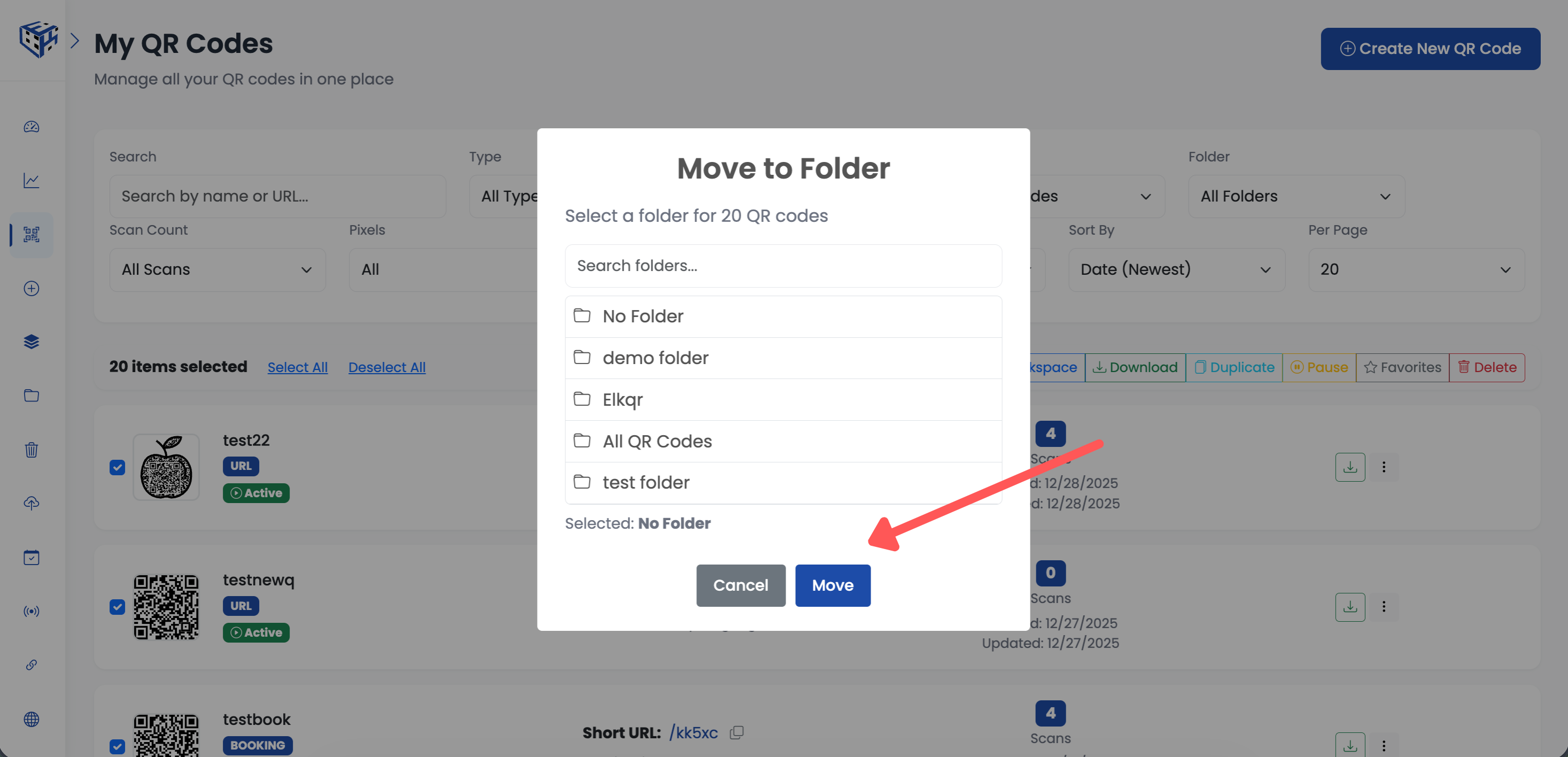
Select folder for bulk move
Assign Folder During Create or Edit
When creating or editing a QR code, go to Advanced Settings and select a folder from the dropdown. You can also create a new folder directly from here.
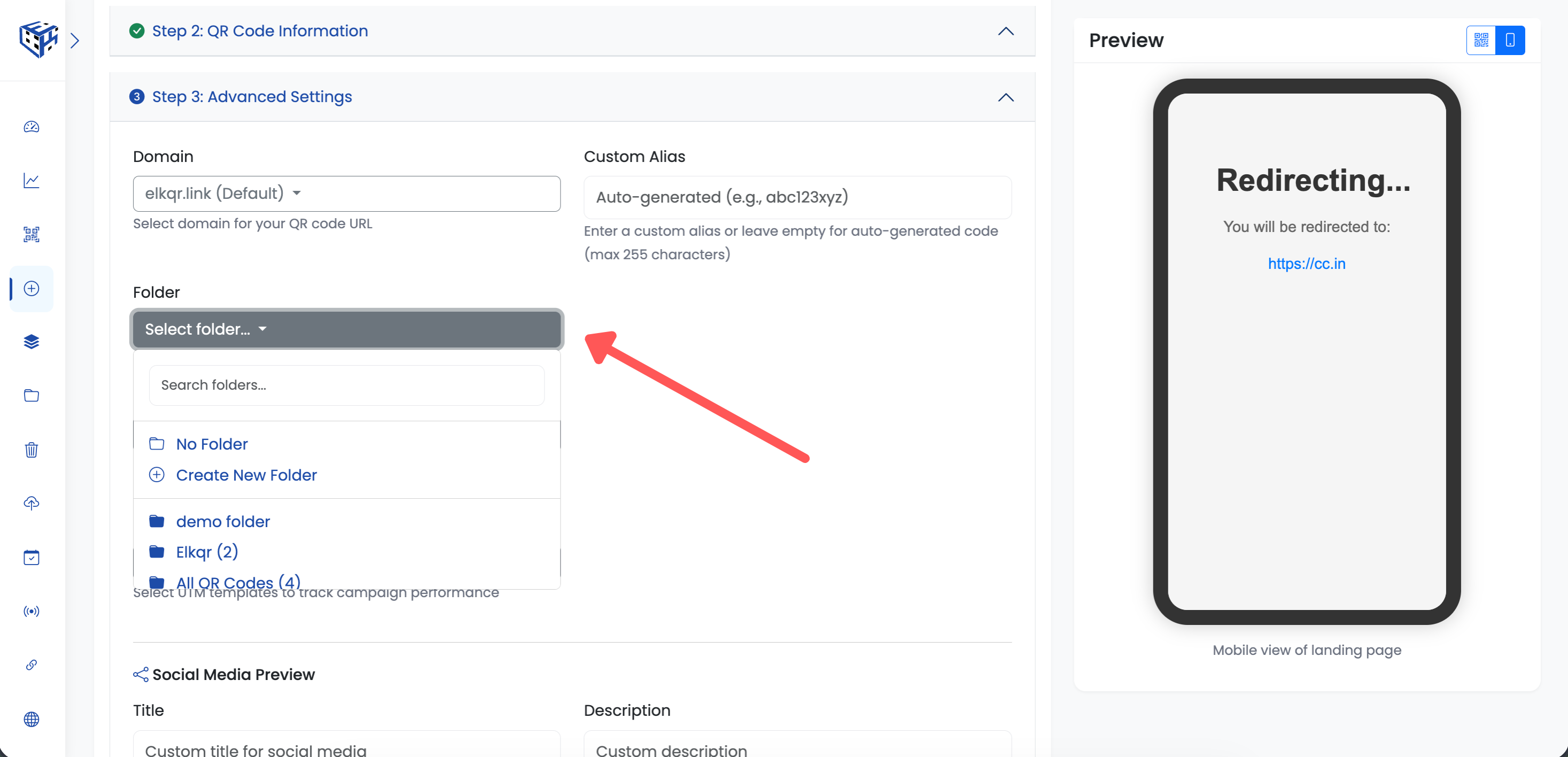
Select folder in Advanced Settings
Still facing difficulties?
Click here to contact our support team for assistance