Show a cookie consent banner to EU visitors on your QR code landing pages. Required for GDPR compliance.
Go to Workspace Settings
Click on Settings in the sidebar, then select Workspace Settings.
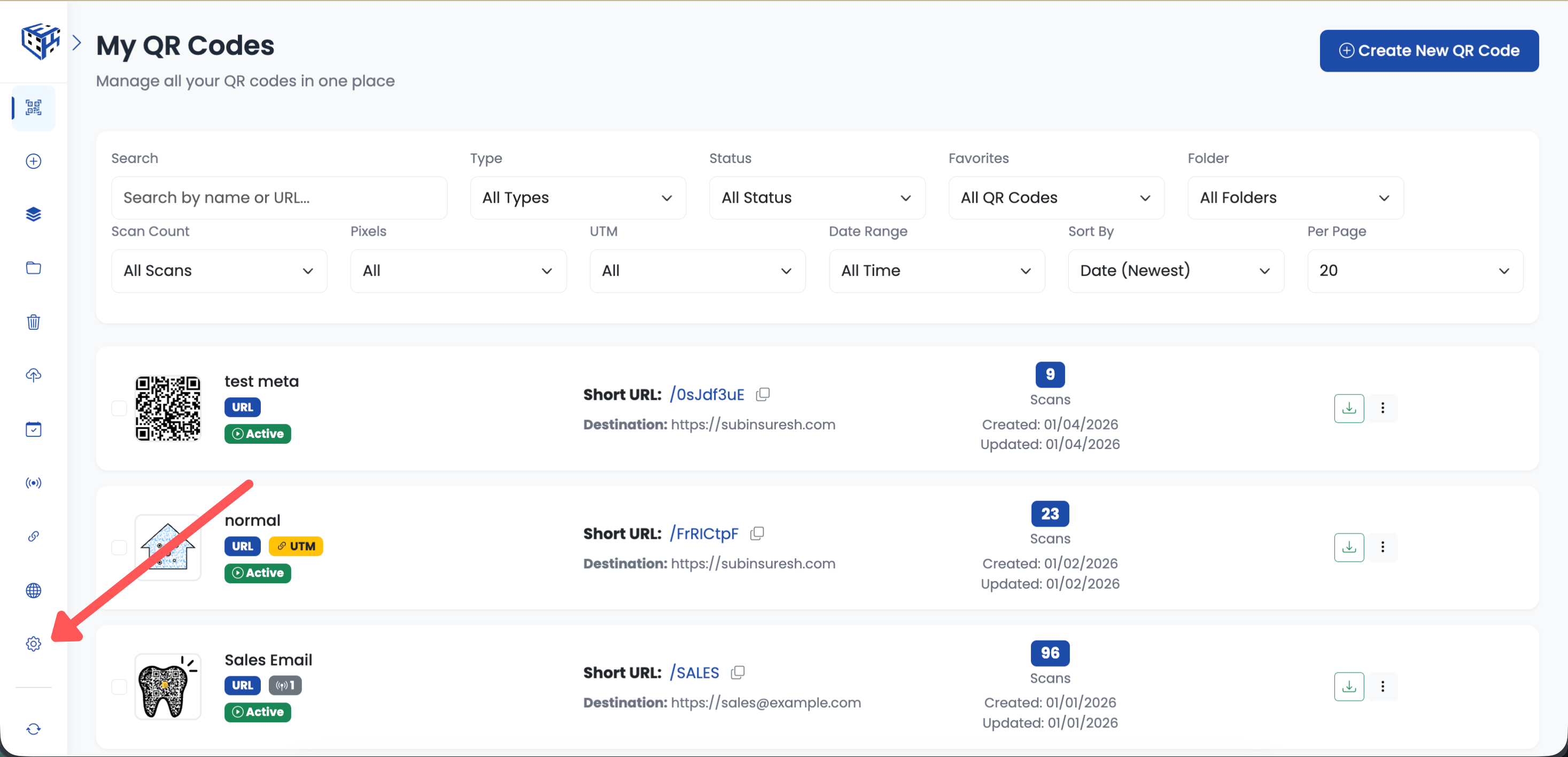
Go to Workspace Settings
Open GDPR Compliance Tab
Click on the "GDPR Compliance" tab.
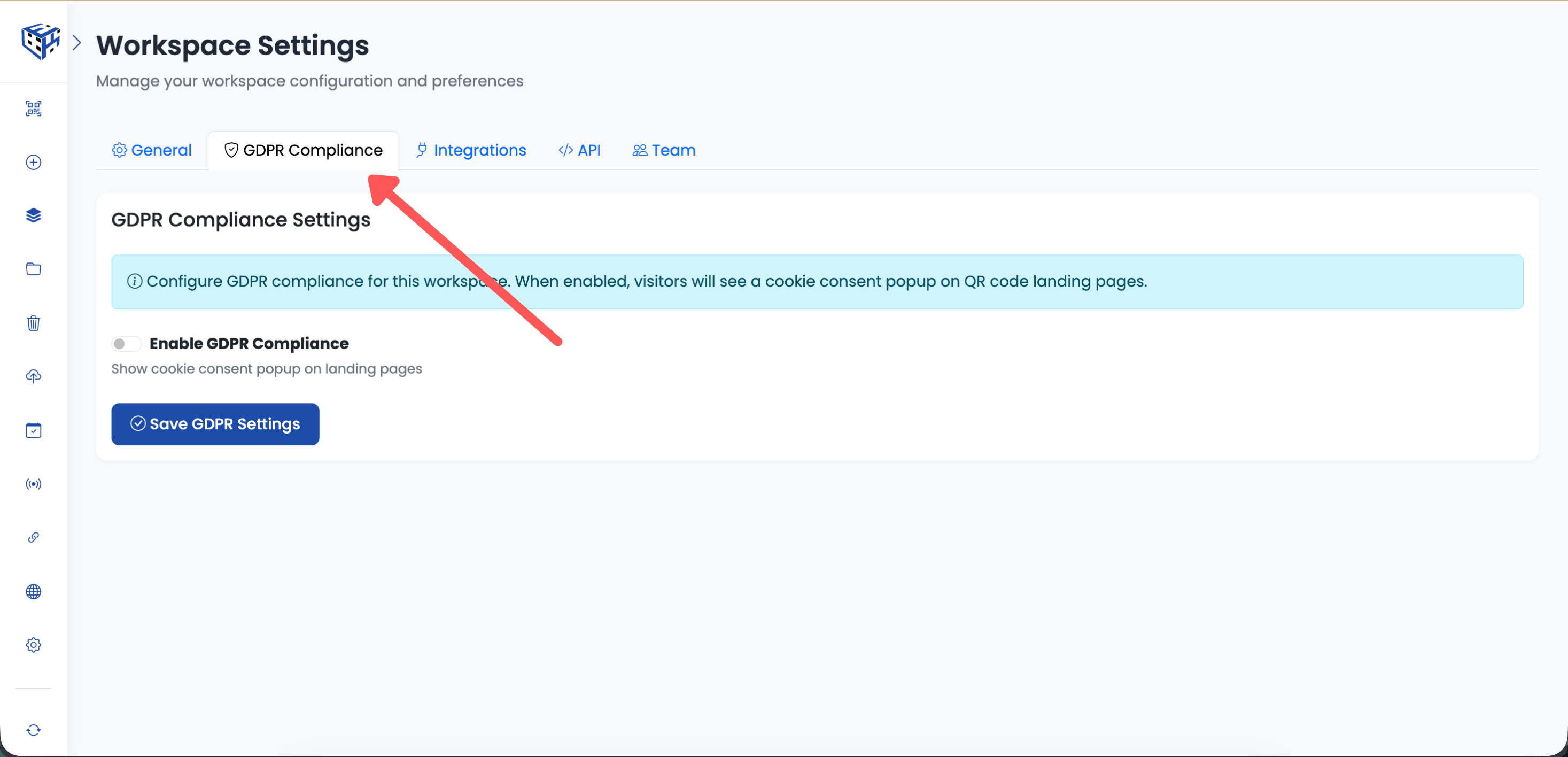
Click on GDPR Compliance tab
Enable GDPR Compliance
Toggle on "Enable GDPR Compliance" to show cookie consent on landing pages.
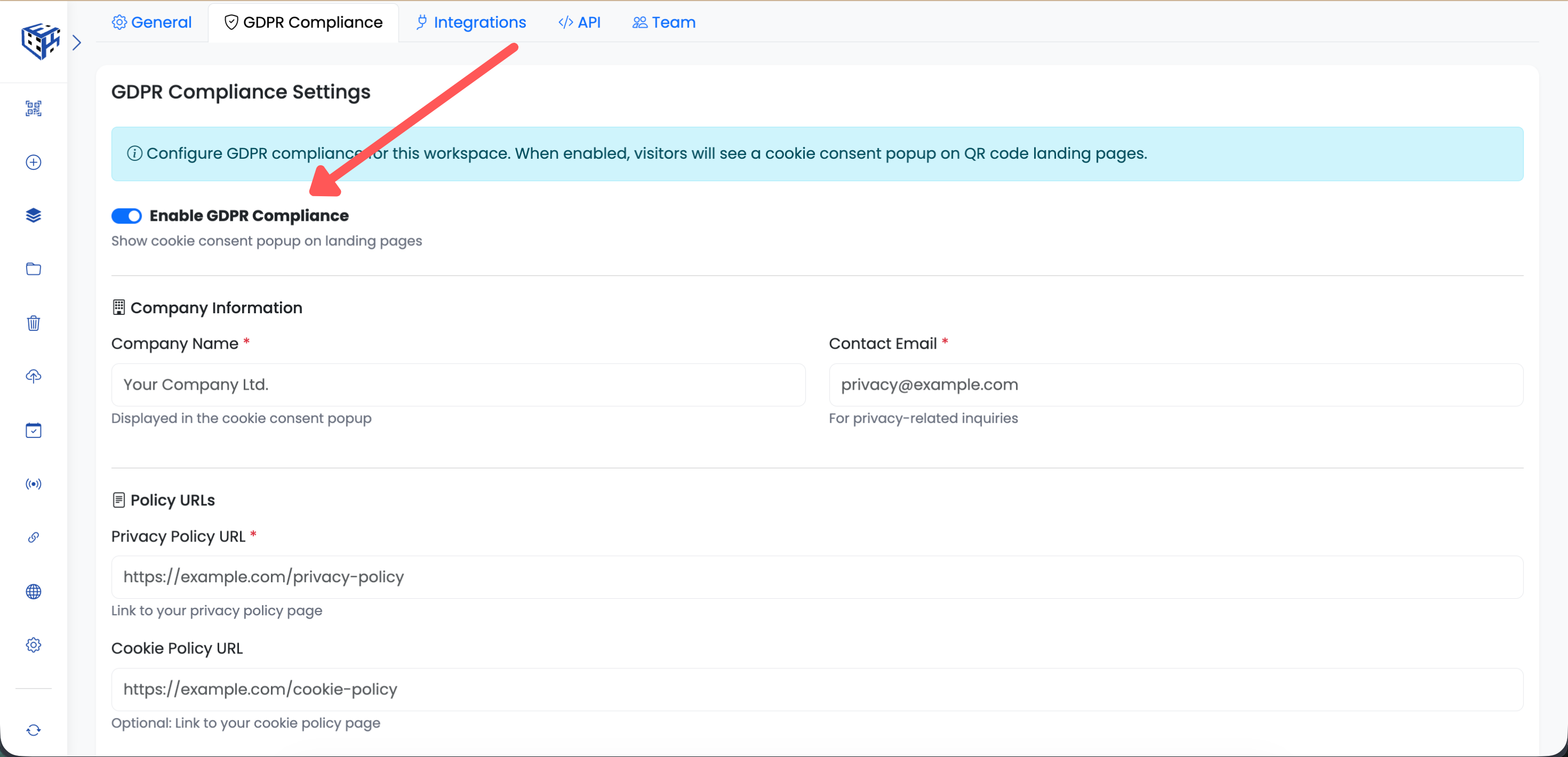
Toggle on Enable GDPR Compliance
Fill in the Required Fields
Enter your company details:
| Field | What to Enter |
|---|---|
| Company Name | Your company or brand name |
| Contact Email | Email for privacy inquiries |
| Privacy Policy URL | Link to your privacy policy page |
| Cookie Policy URL | (Optional) Link to your cookie policy |
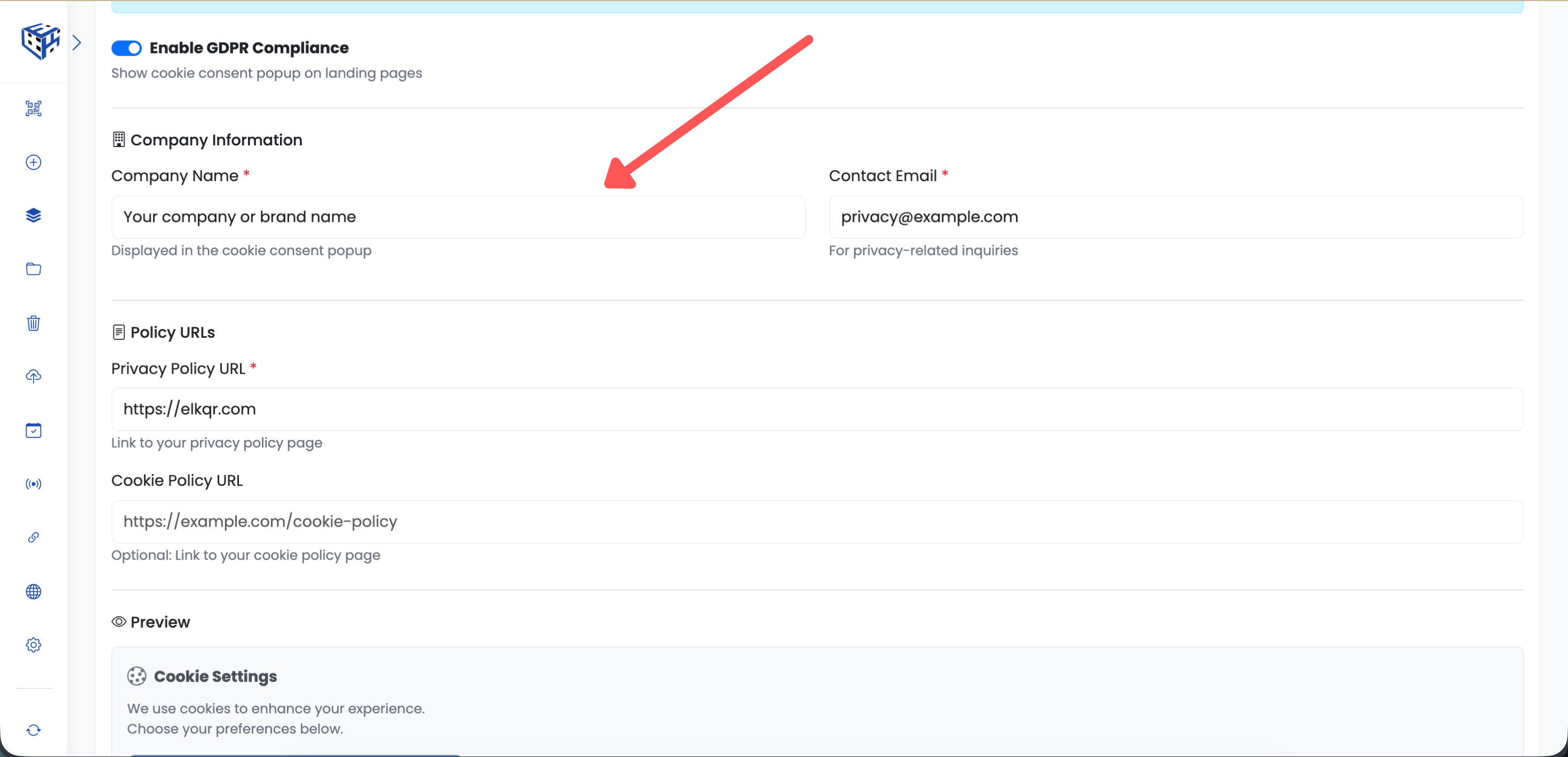
Fill in your company details
Save Settings
Click "Save GDPR Settings" to apply the changes.
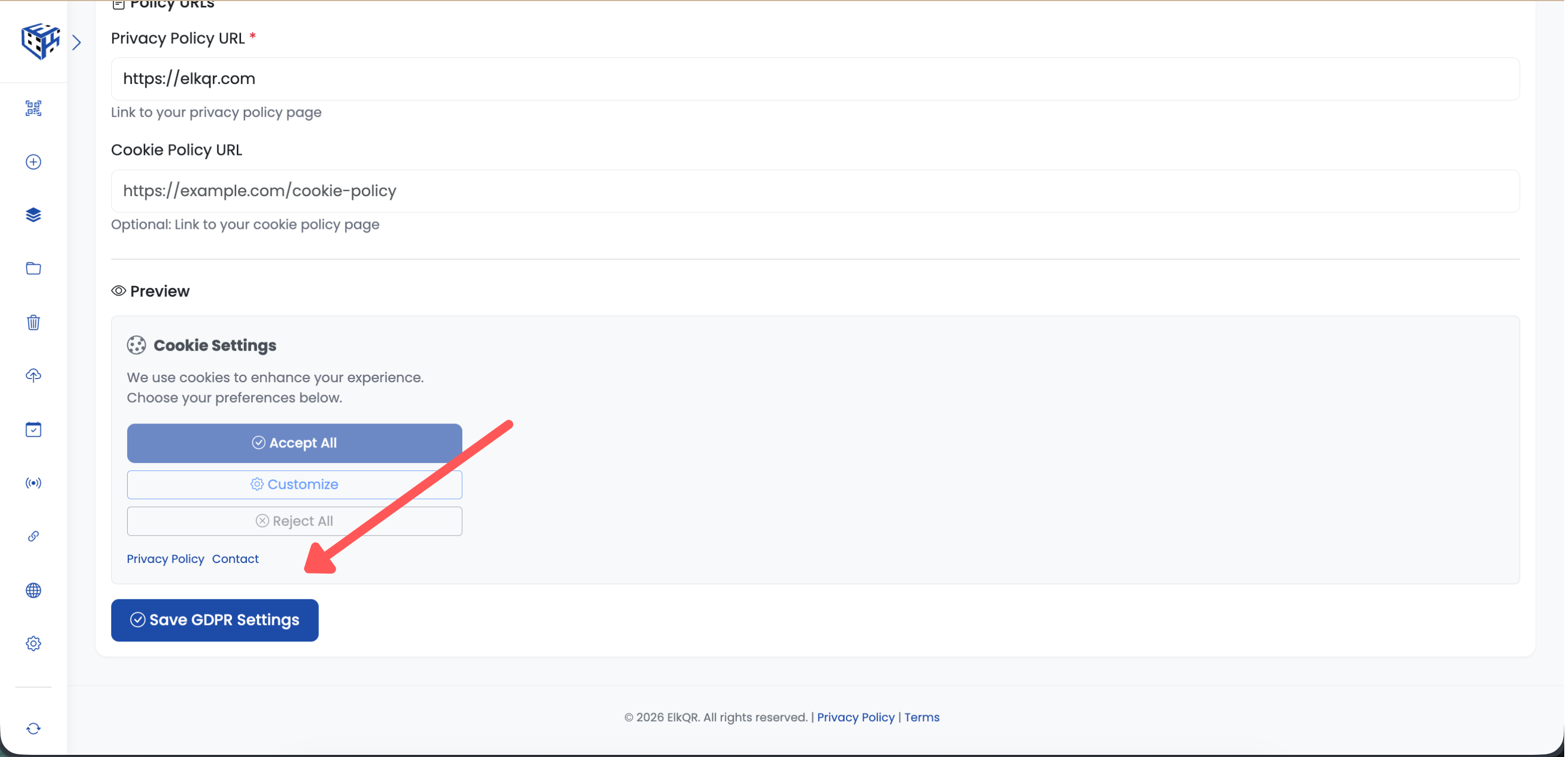
Click Save GDPR Settings
What Visitors See
When someone scans your QR code, they'll see a cookie consent popup. They can Accept All, Decline, or Customize their preferences.
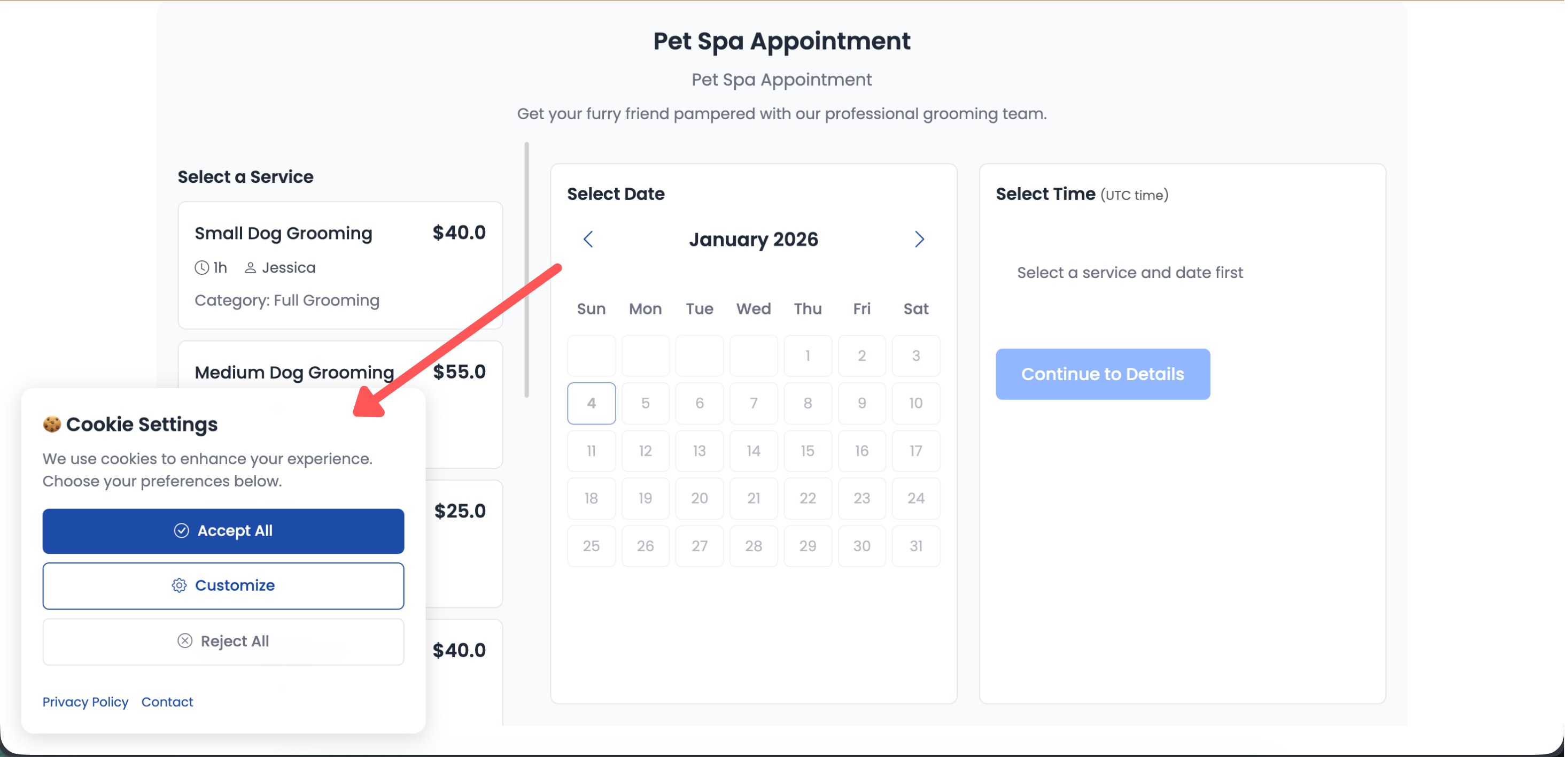
Visitors see this cookie consent popup
Tip
GDPR settings apply to all QR codes in this workspace. Create separate workspaces for different brands or regions.
- GDPR Compliance - Learn more about GDPR compliance
Still facing difficulties?
Click here to contact our support team for assistance