Create conditional redirects that send visitors to different URLs based on their device, location, time, or language.
Tip
Smart Rules only work with Website URL QR codes.
Create or Edit a Website URL QR Code
Create a new QR code and select Website URL type, or edit an existing Website URL QR code.
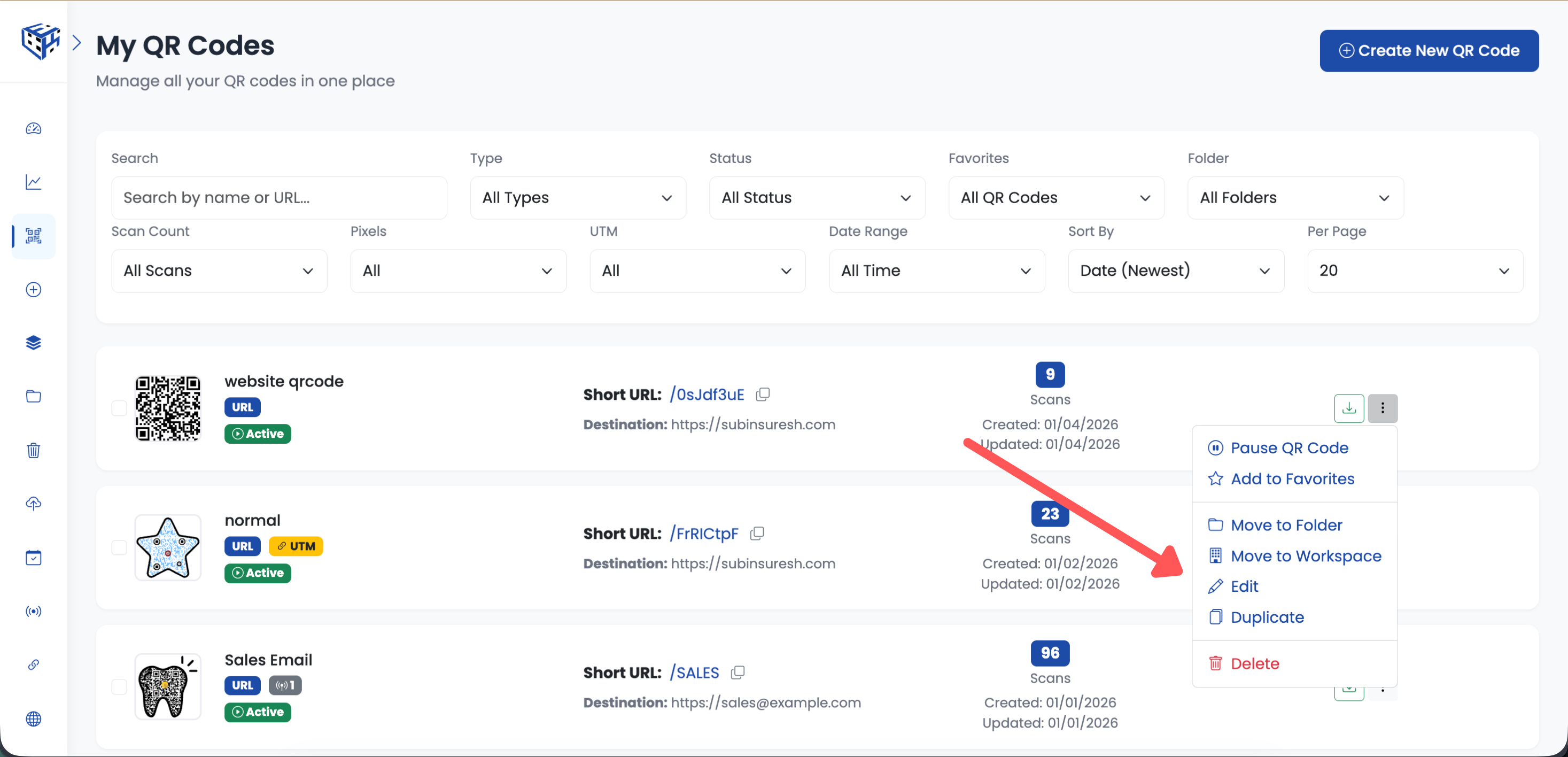
Select Website URL as your QR type
Enter Your Default URL
Enter your default destination URL in the Target URL field. This is where visitors go if no rules match.
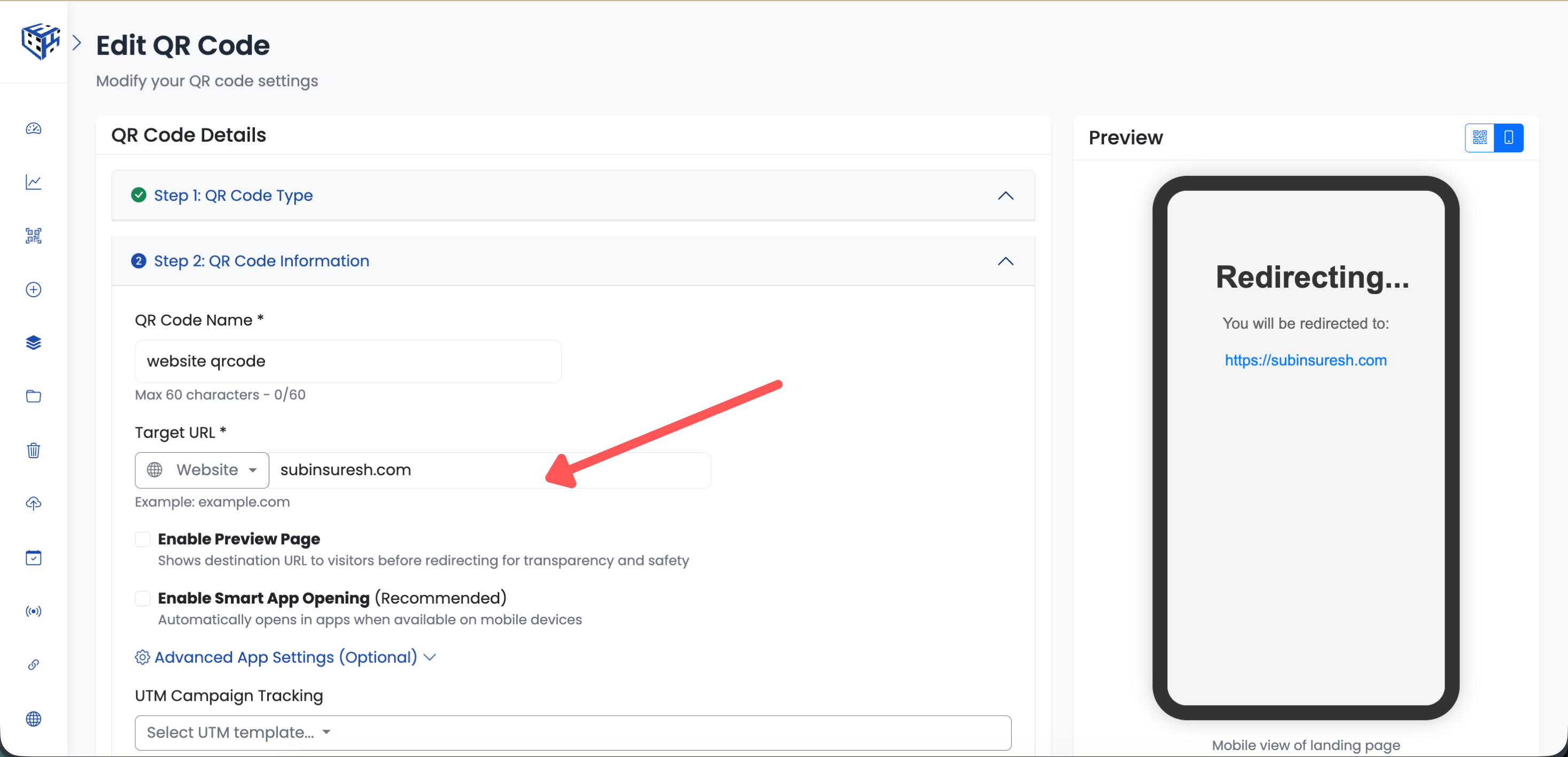
Enter your default destination URL
Expand Smart Rules Section
Click on the "Smart Rules (Conditional Redirects)" button to expand the Smart Rules section.
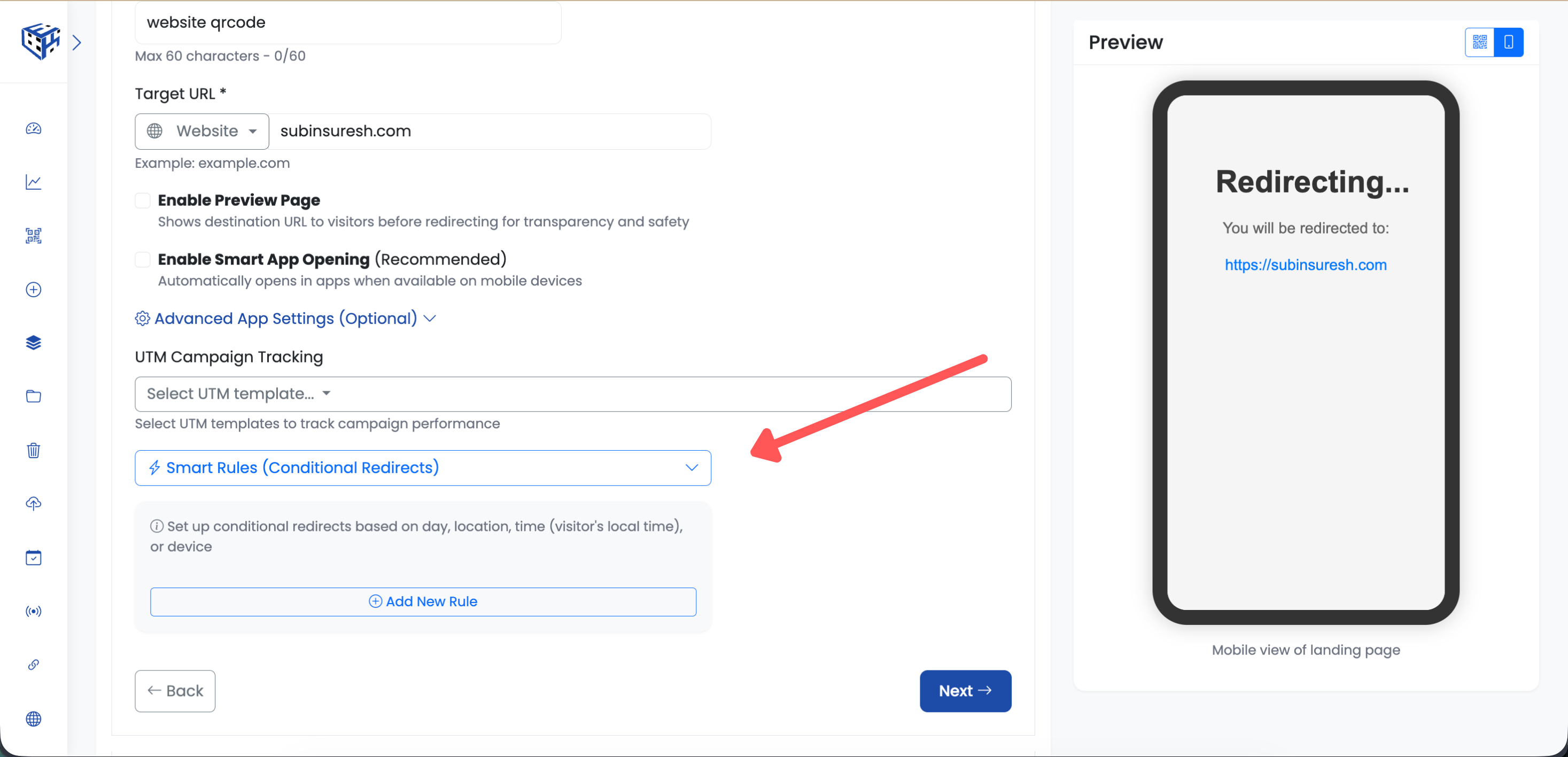
Click to expand Smart Rules section
Add New Rule
Click "Add New Rule" button to open the rule creation modal.
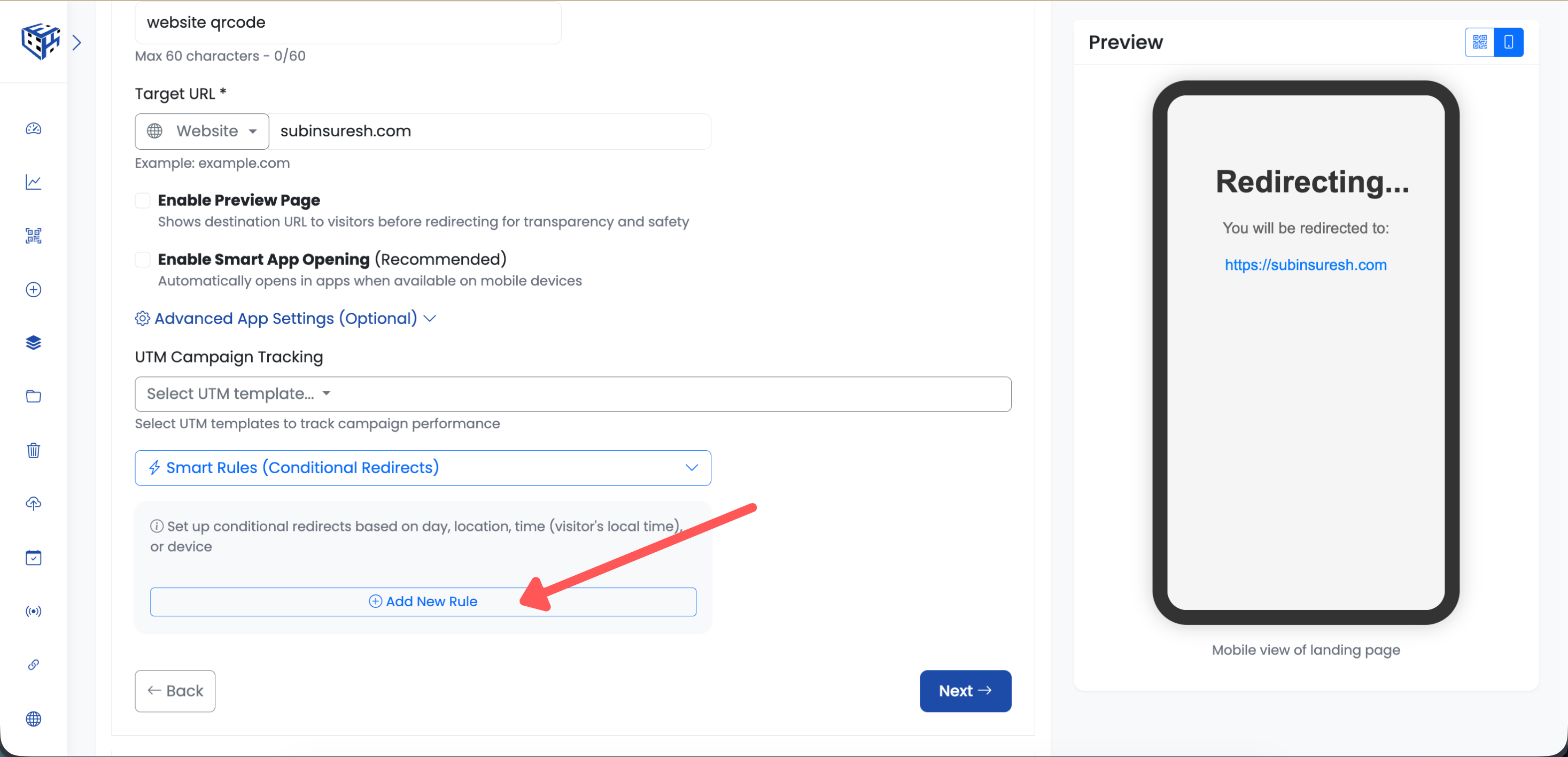
Click Add New Rule
Configure Your Rule
Fill in the rule settings:
| Field | Description |
|---|---|
| Rule Name | Give your rule a descriptive name (e.g., "Weekend Special") |
| Condition | Select from: Day of Week, Country, Time of Day, Date Range, Device Type, or Language |
| Operator | Choose "Is" or "Is Not" |
| Value | Select the specific value (e.g., Saturday, Germany, iOS) |
| Logic | AND = all conditions must match, OR = any condition matches |
| Redirect URL | The URL to send visitors when conditions match |
| Priority | Lower number = higher priority (1 is checked first) |
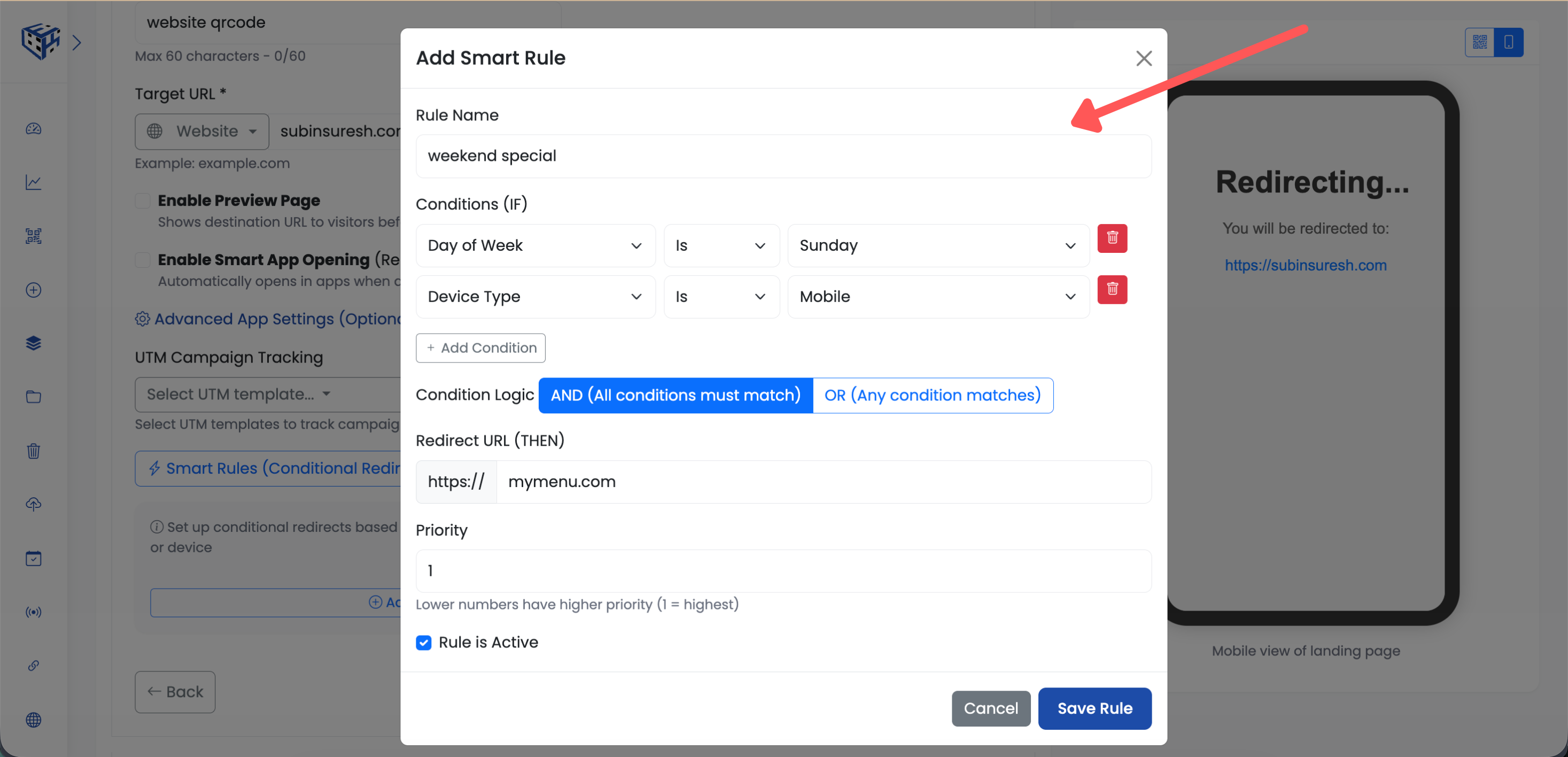
Configure your rule conditions and redirect URL
Save Rule and QR Code
Click "Save Rule" to add the rule, then complete the QR code creation process.
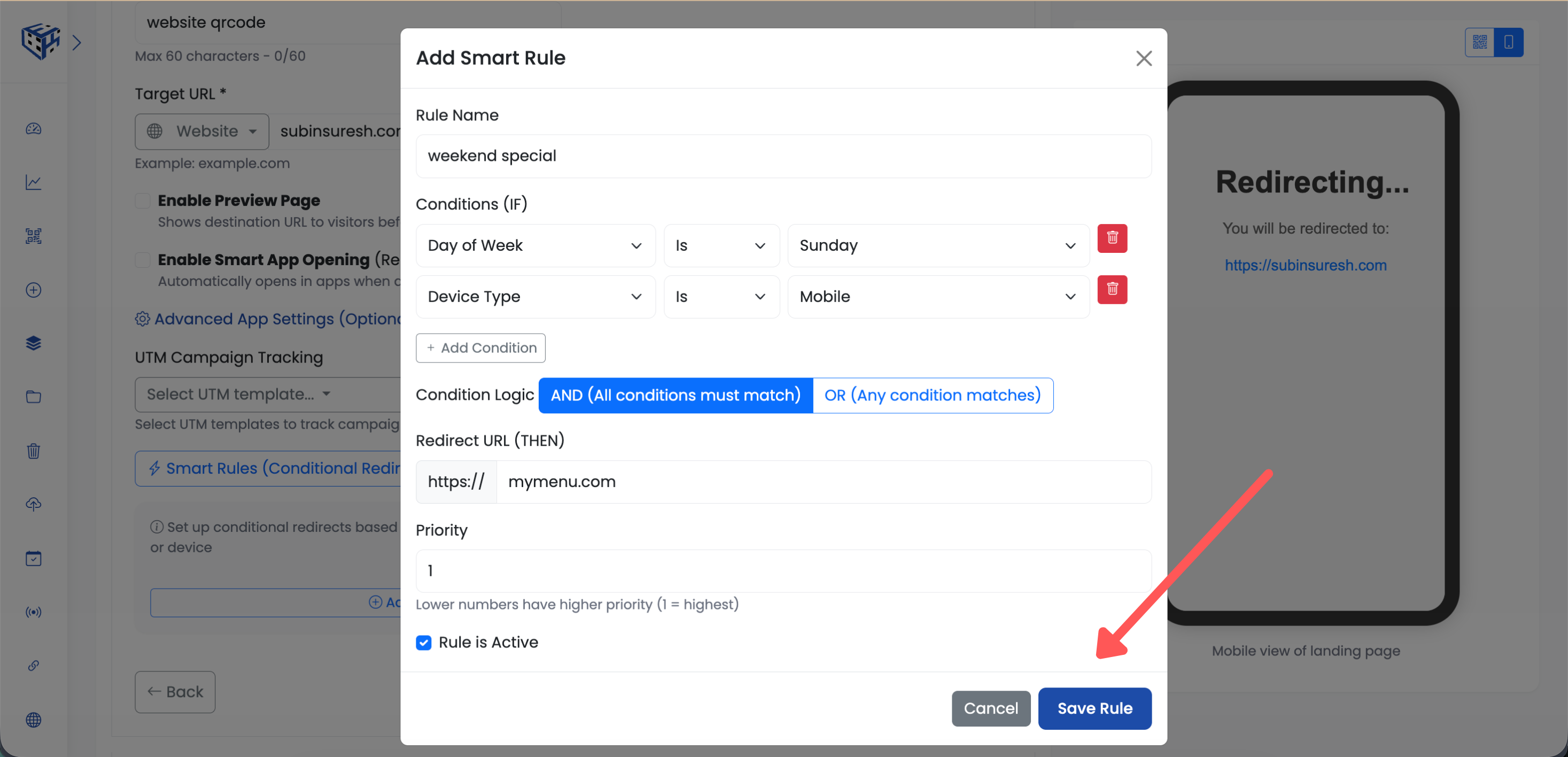
Click Save Rule
Tip
You can add multiple rules to one QR code. Rules are evaluated in priority order - the first matching rule wins.
- Smart Rules (Conditional Redirects) - Learn more about Smart Rules features
Still facing difficulties?
Click here to contact our support team for assistance