Would You Scan This?
You're walking past a poster. There's a QR code. It's black and white. No logo. No colors. Just... a square. Your brain says: "Could be anything. Could be a virus. Probably spam." You keep walking.
Now imagine: Same poster. But the QR code is in Coca-Cola red. Has the Coke logo in the center. Shaped like a bottle cap. Your brain says: "Oh, it's from Coke. Probably a promo." You scan it.
That's the difference between a generic QR code and a branded one. Trust. Recognition. Action.
Branded QR codes get up to 30% more scans. Not because they're prettier - because people trust them more.
Generic vs Branded: The Trust Gap
| Generic Black & White | Branded with Logo & Colors |
|---|---|
| Looks like it could be malware | Looks like it's from a real company |
| People hesitate before scanning | People scan without thinking twice |
| Forgotten 2 seconds after seeing it | Remembered because of brand colors |
| Blends into every other QR code | Stands out on posters, packaging, cards |
| "Is this safe?" | "Oh, it's from [Brand]. Let me check." |
Your Design Playground
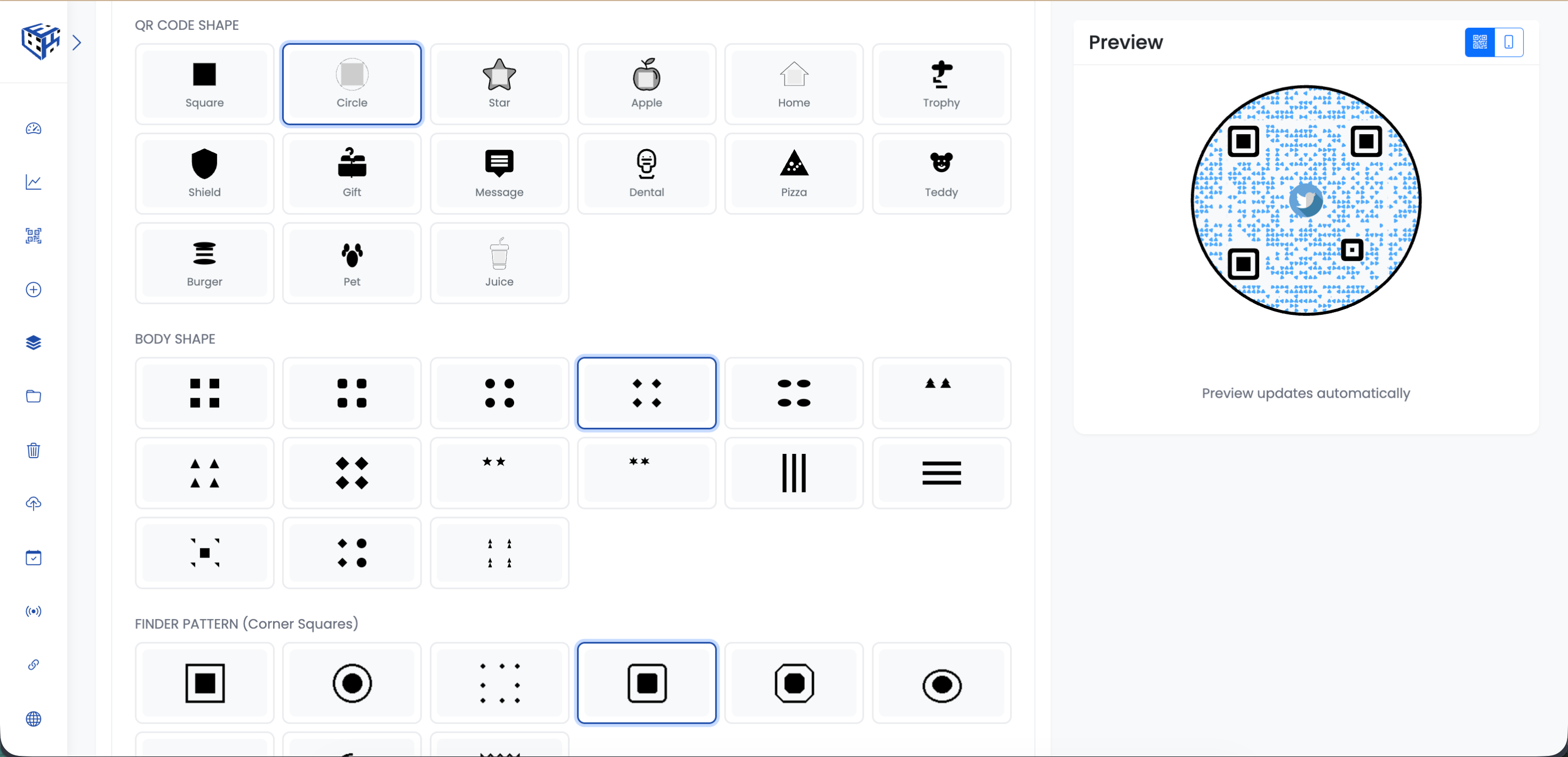
ElkQR gives you more customization than any other QR generator. Here's what you can change:
| Element | What You Get | Why It Matters |
|---|---|---|
| Colors | 8 presets + unlimited custom colors | Match your exact brand hex codes |
| QR Shape | 15 shapes: Square, Circle, Star, Heart, Shield... | Break away from boring squares |
| Body Pattern | 15 styles: Dots, Diamonds, Rounded, Classy... | Make it look designed, not generated |
| Your Logo | Upload PNG/JPG or pick from 21 built-in icons | People see your brand before they even scan |
| Corner Styles | 9 different finder corner designs | The little details that make it premium |
Put Your Logo in the Center
Upload your logo and drop it right in the middle of your QR code. Resize it from tiny (5%) to huge (100%). Add a white background behind it so it pops. Move it around until it looks perfect. Your QR code, your rules.
The One Thing That Can Go Wrong
Add too much design, and the QR code might not scan. That's where error correction saves you. It's like a safety net - the higher the level, the more damage (like a logo covering part of it) the code can handle and still work.
| Level | Can Handle | Use When |
|---|---|---|
| L (Low) | 7% covered | No logo, minimal design, smallest file size |
| M (Medium) | 15% covered | Small logo, light customization |
| Q (Quartile) | 25% covered | Medium logo, moderate design |
| H (High) | 30% covered | Big logo, heavy customization - USE THIS if adding logo |
Before You Print 10,000 Copies...
- Test with at least 3 different phones (iPhone, Android, older models)
- Scan in different lighting conditions (bright sun, dim room)
- Make sure colors have enough contrast (dark on light or light on dark)
- Avoid yellow or light colors on white backgrounds - hard to scan
- If adding logo, set error correction to H (High)
Tip
Pro move: Create a 'brand template' with your colors, logo, and preferred shape. Apply it to every new QR code in seconds. Consistent branding, zero effort.
Warning
A pretty QR code that doesn't scan is useless. Always test before printing. Always.
- How to create your first QR code? - Step-by-step guide with full customization walkthrough
Still facing difficulties?
Click here to contact our support team for assistance