It's Monday morning. You need to update menu QR codes for Restaurant A, check analytics for Restaurant B, and create a new campaign for Restaurant C. Each restaurant has its own workspace with separate QR codes, team members, and settings. Switching between them takes two clicks - no logging out, no separate accounts, just instant context switching.
Open Workspace Selection
Click Switch Workspace in the sidebar to open the workspace selection page.
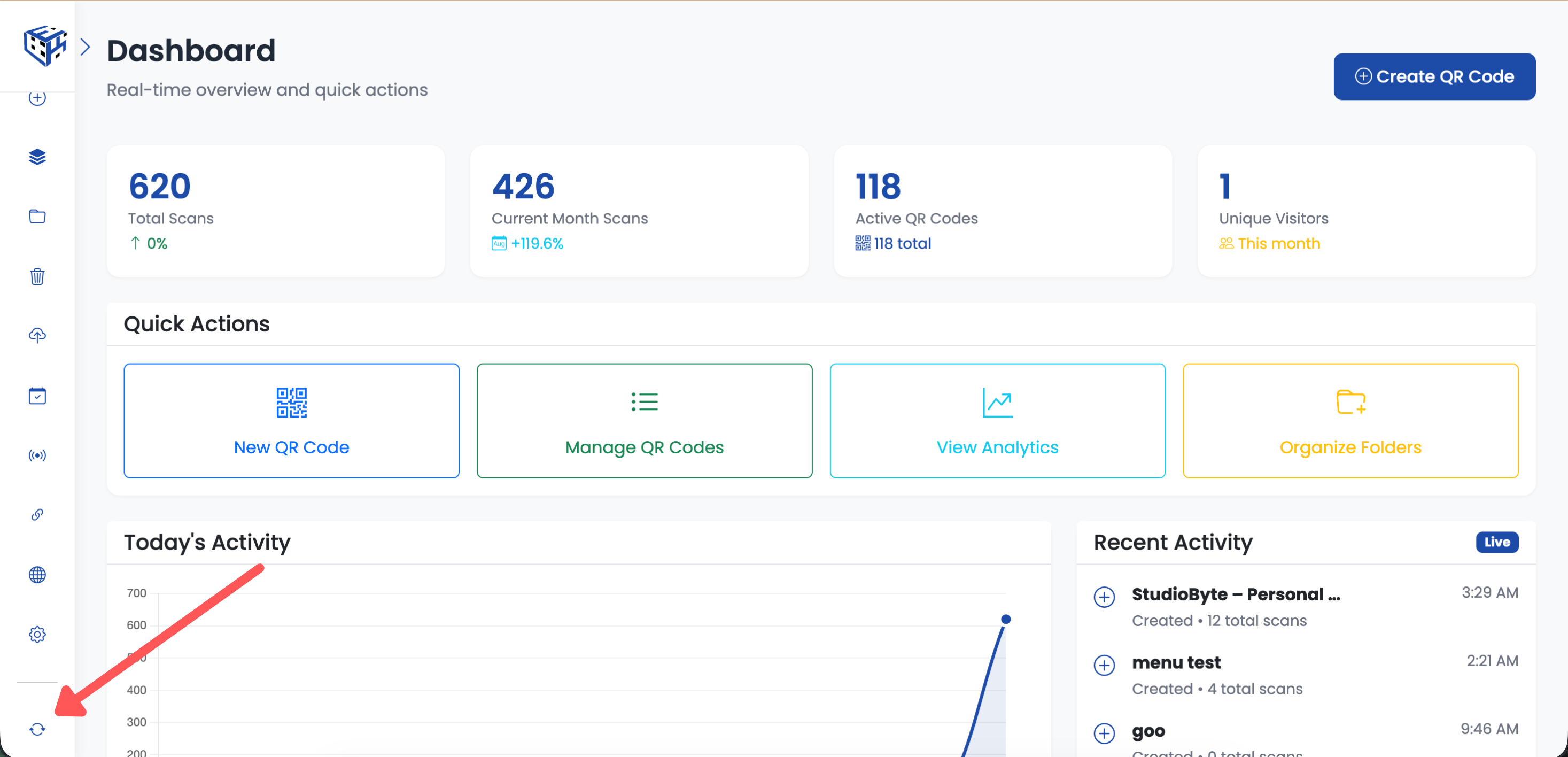
Click Switch Workspace in the sidebar
Select a Workspace
Click any workspace card to switch to it instantly. The current workspace is highlighted with a blue border.
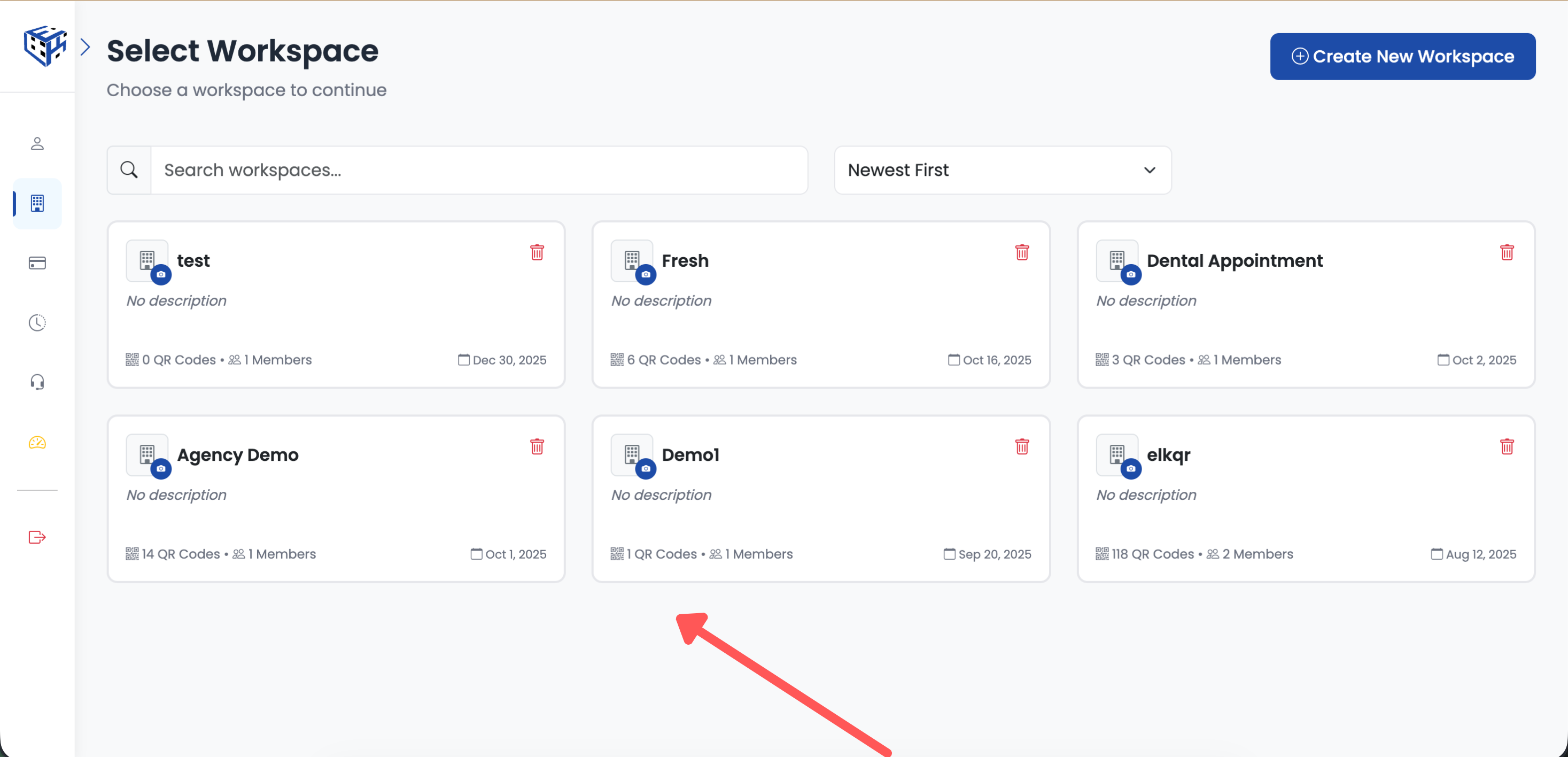
Click any workspace card to switch
Finding Your Workspaces
Use these tools to find workspaces quickly:
| Feature | What It Does |
|---|---|
| Search bar | Find workspaces by name or description |
| Sort dropdown | Order by Newest, Oldest, or Name A-Z/Z-A |
| Blue border | Shows which workspace is currently active |
What Each Card Shows
| Info | Description |
|---|---|
| Workspace name | The name you gave when creating |
| Description | Optional text to identify the workspace |
| QR codes count | Total QR codes in this workspace |
| Team members | Number of people with access |
| Created date | When the workspace was created |
Tip
Add a logo to each workspace for quick visual identification. Click the camera icon on the workspace card to upload.
Still facing difficulties?
Click here to contact our support team for assistance