Your marketing campaign launches in 48 hours. The designer needs to update QR code colors, the copywriter needs to check landing pages, and your client wants to monitor scan analytics. Instead of sharing passwords or doing everything yourself, you invite each person with exactly the access they need - the designer edits designs only, the copywriter views content, and the client sees analytics. Everyone works simultaneously without stepping on each other's toes.
Open Workspace Settings
Click Settings in the sidebar (under the Workspace section).
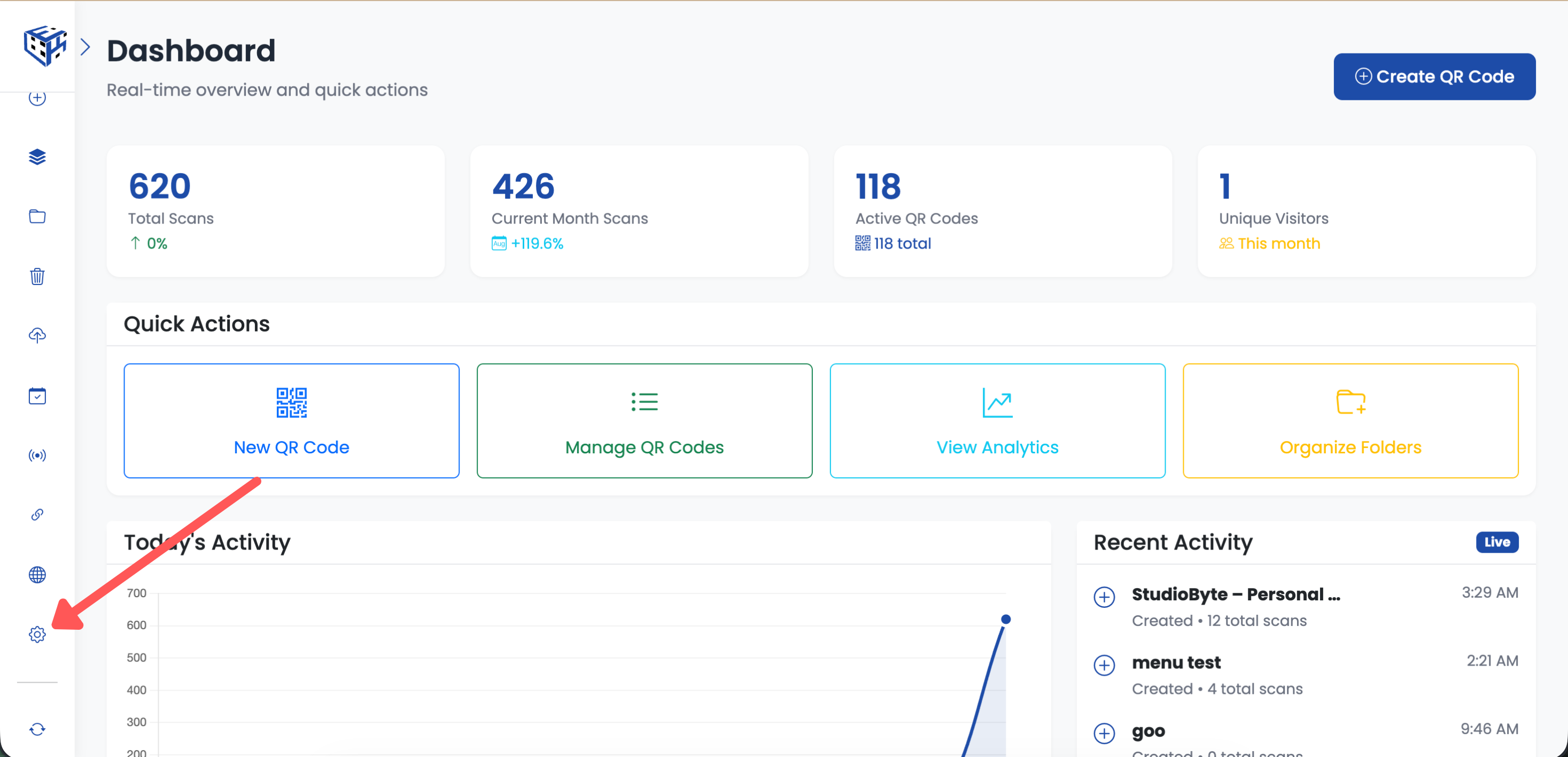
Click Settings in the sidebar
Go to Team Tab
Click the Team tab to see your current team members and pending invitations.
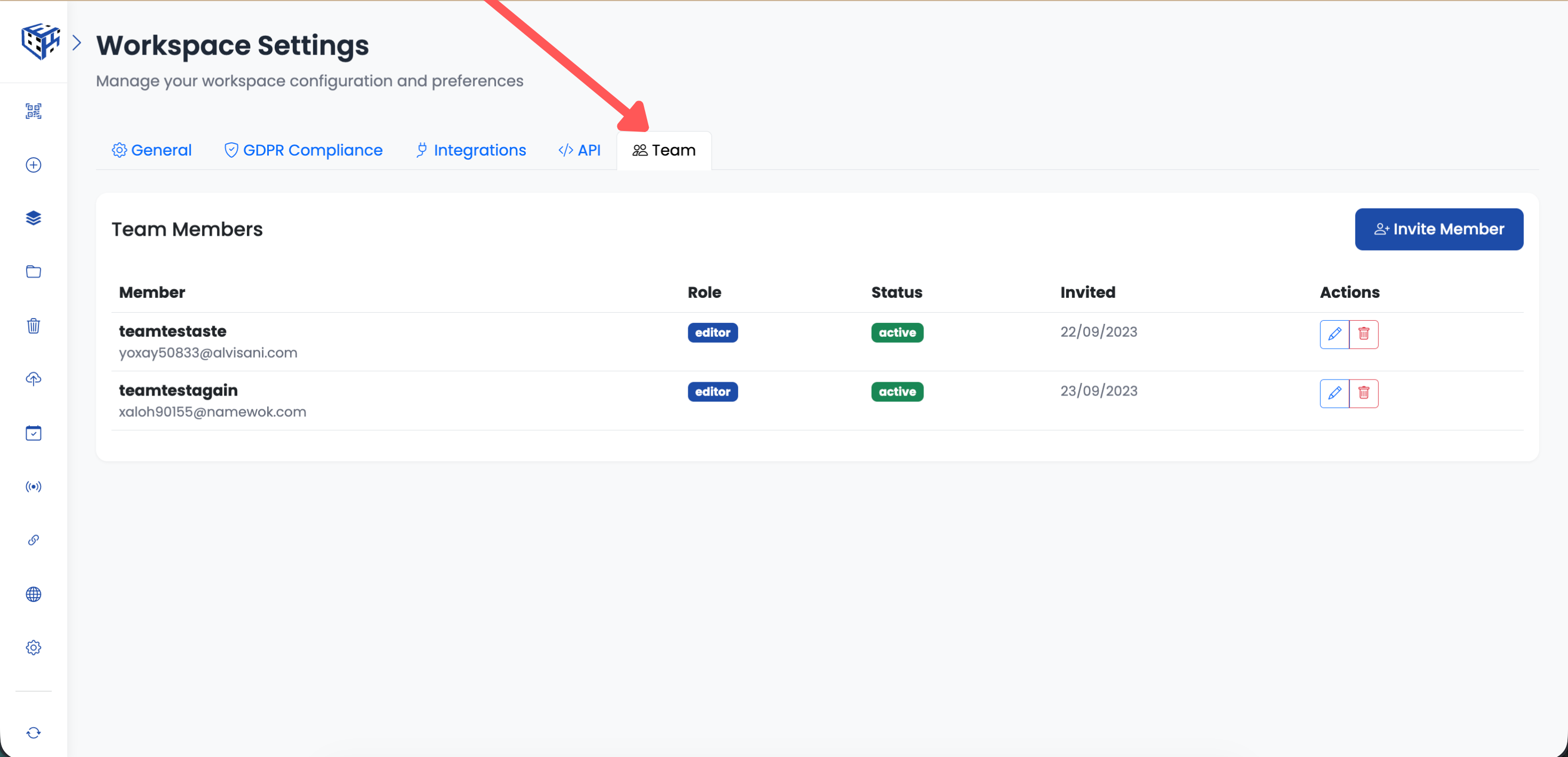
Click the Team tab
Click Invite Member
Click the Invite Member button to open the invitation form.
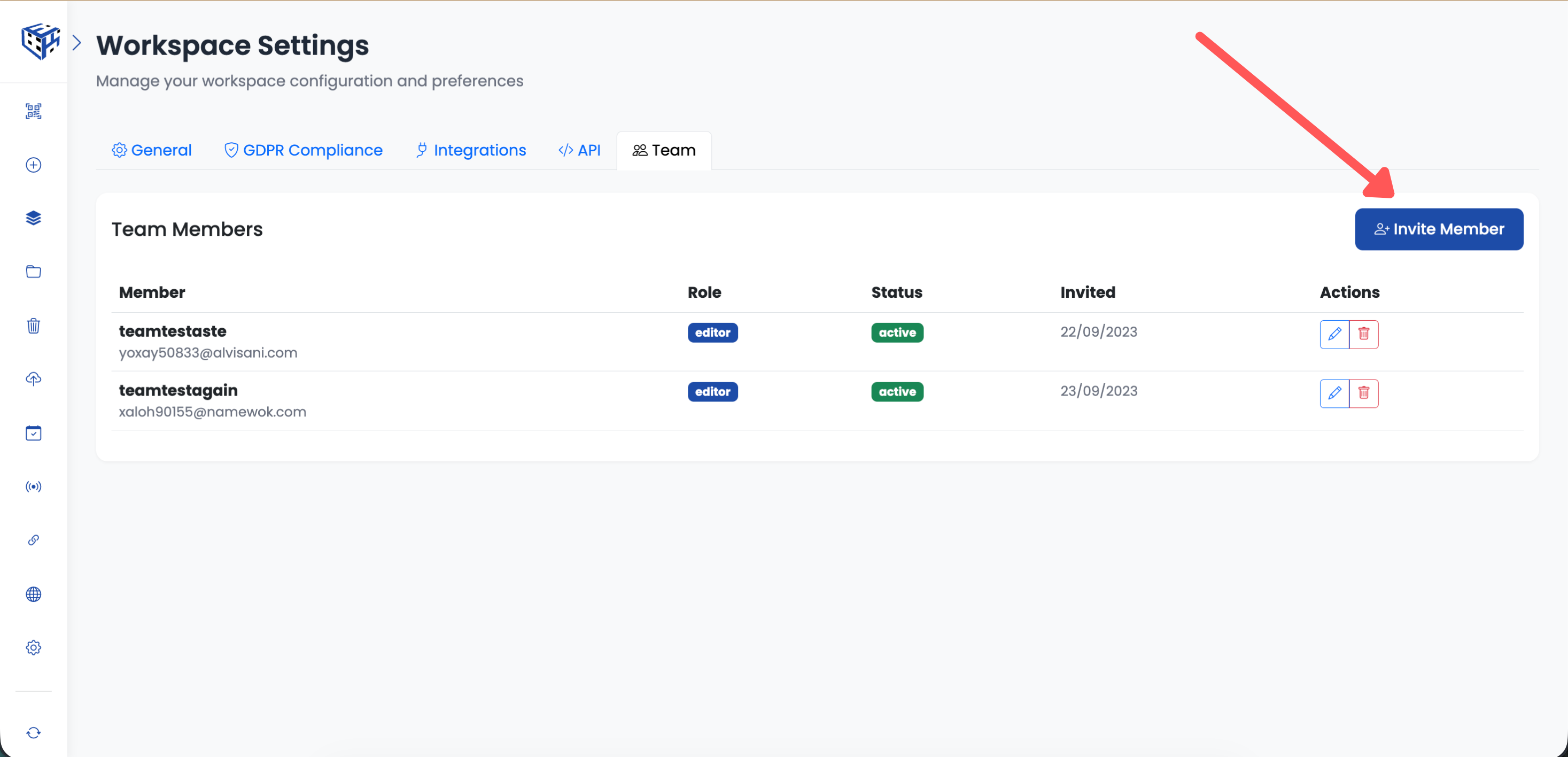
Click Invite Member
Fill in Details and Permissions
Enter their information and configure exactly what they can access.
| Field | Description |
|---|---|
| Email Address | The email they'll use to log in (required) |
| Full Name | Their display name in the team list (required) |
| Permission Level | Editor (can create, edit, delete) or Viewer (read-only) |
| QR Code Access | All QR Codes & Folders, Selected Folders Only, or Selected QR Codes Only |
| Custom Domain Access | All domains, selected domains, or no custom domains |
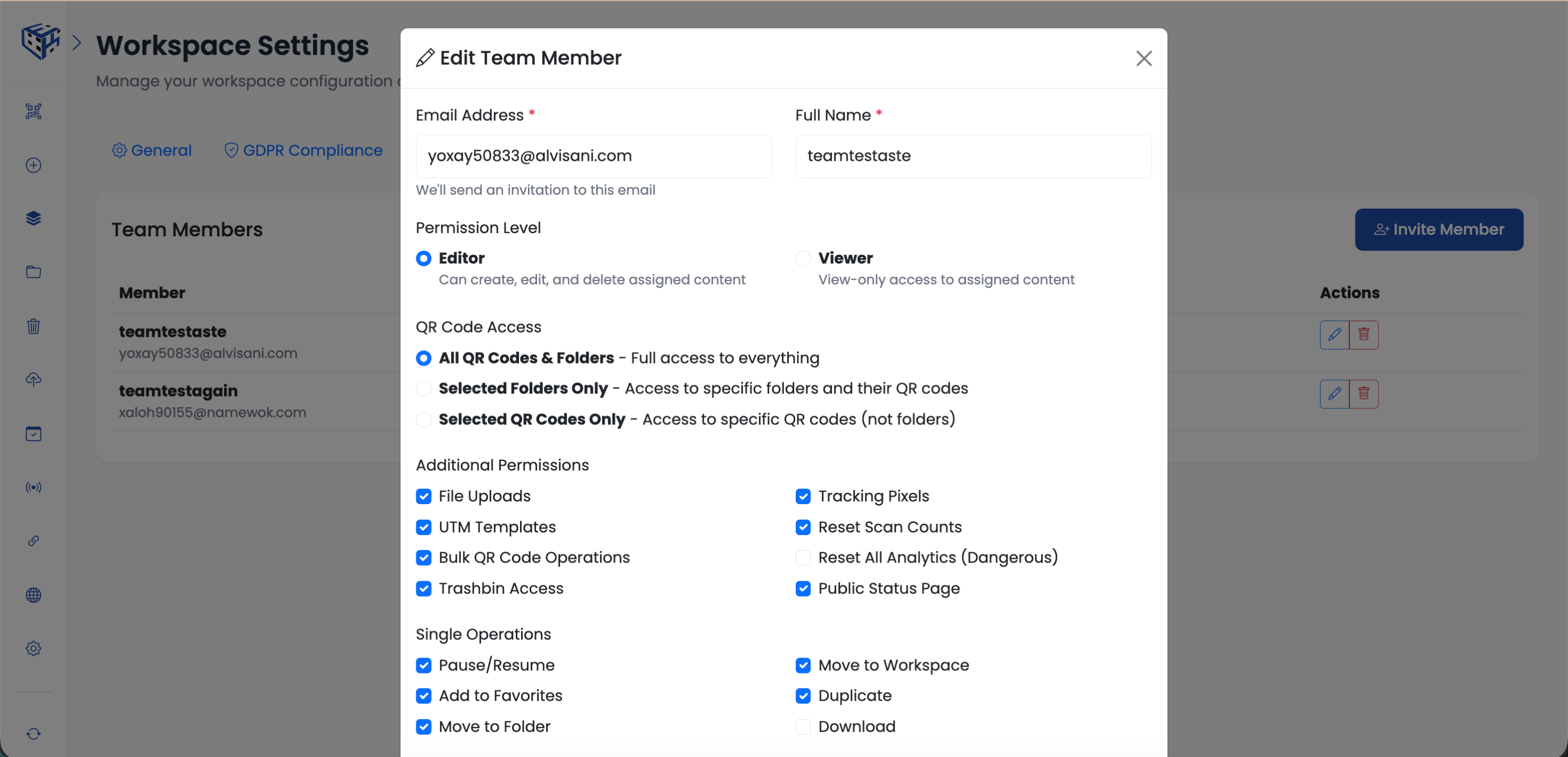
Configure permissions during invitation
Send Invitation
Click Send Invitation. They'll receive an email with a link to join your workspace.
QR Code Access Options
| Access Level | Best For |
|---|---|
| All QR Codes & Folders | Full team members, managers who need complete access |
| Selected Folders Only | Department staff, campaign managers who work on specific projects |
| Selected QR Codes Only | External vendors, temporary contractors with limited access |
What Happens Next
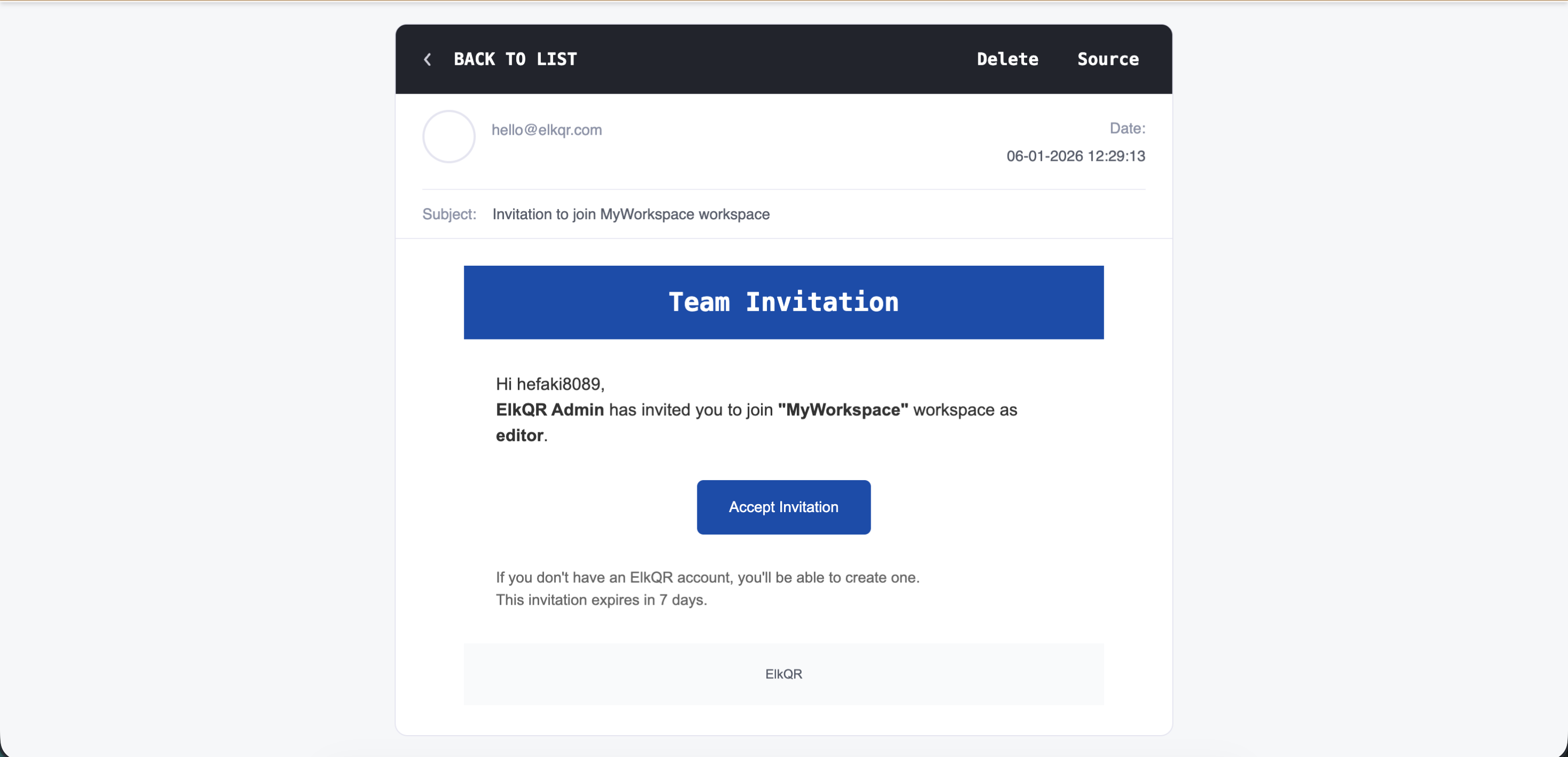
What Happens Next
- They receive an email invitation with a unique link
- New users create an account and automatically join your workspace
- Existing ElkQR users click the link to accept and switch to your workspace
- You'll see them listed in the Team tab once they accept
Note
Team member limits depend on your plan. Check the Billing page for your current limits.
Still facing difficulties?
Click here to contact our support team for assistance