The campaign ended six months ago. The client moved on. The workspace is just sitting there cluttering your list. Before you delete it, make sure you've saved anything important - because once it's gone, it's gone forever. No trash bin, no recovery, no exceptions.
Warning
Deleting a workspace permanently removes all QR codes, folders, files, and analytics. This action cannot be undone.
Before You Delete
Make sure you've saved everything you need:
- Export analytics data as CSV from the Analytics page
- Download important QR code images (SVG/PNG) that you might need later
- Move any QR codes you want to keep to another workspace
- Notify team members who have access - they'll lose access immediately
Open Workspace Selection
Click Switch Workspace in the sidebar to open the workspace selection page.
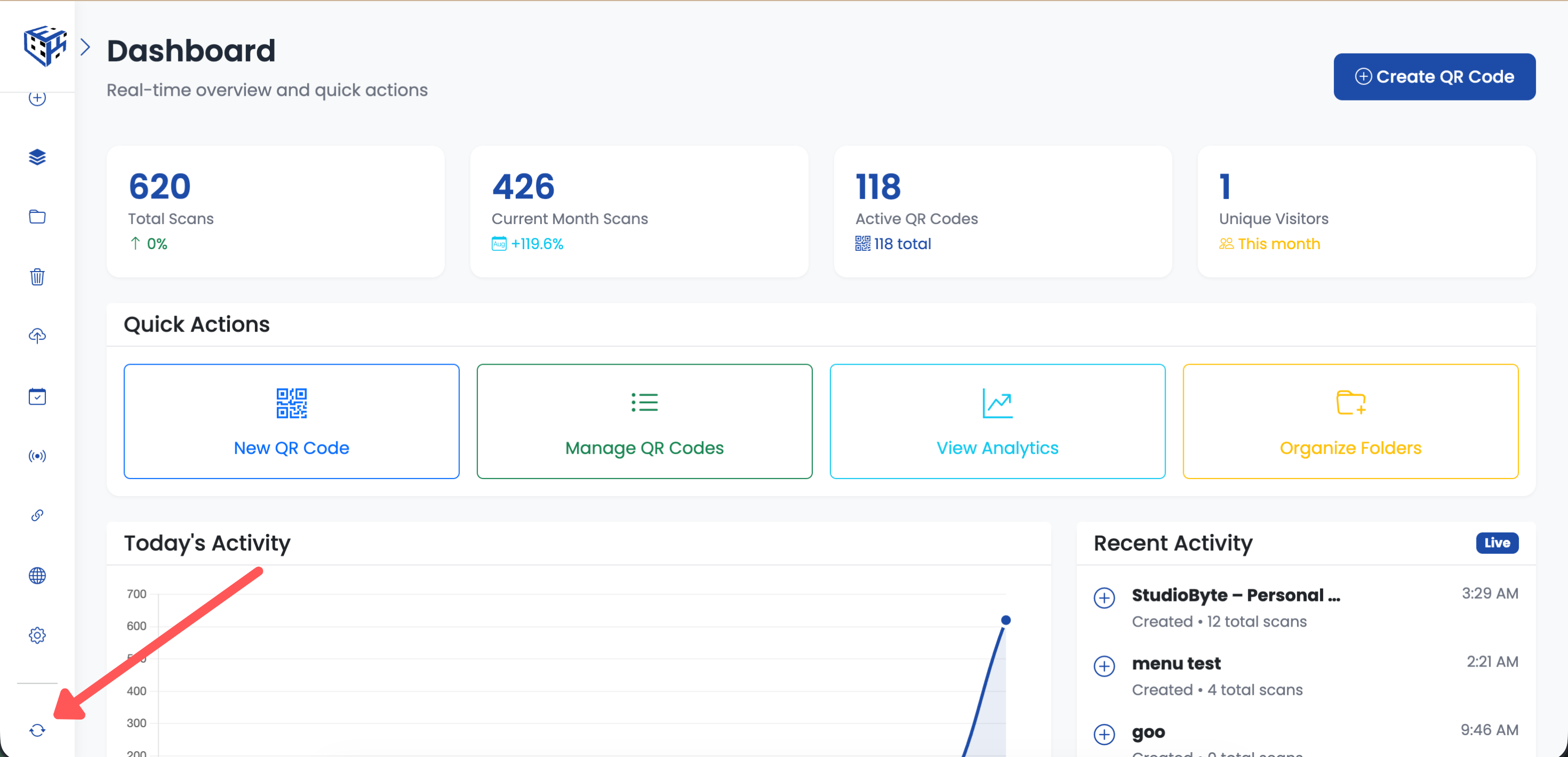
Click Switch Workspace in the sidebar
Click the Trash Icon on the Workspace Card
Find the workspace you want to delete. Click the trash icon on the workspace card. Only workspace owners can see this icon.
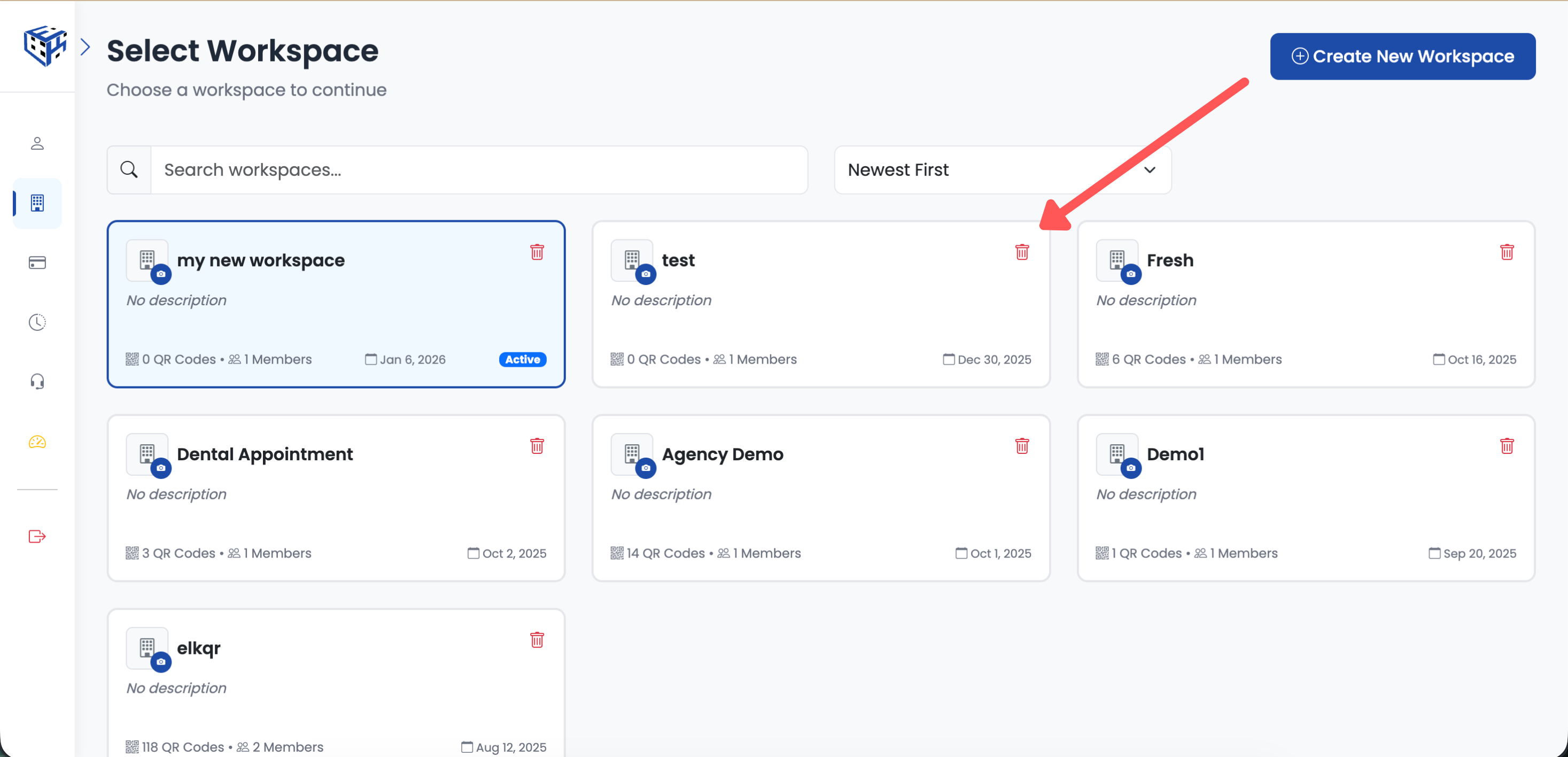
Click the trash icon to delete
Type Workspace Name to Confirm
A confirmation dialog will appear. Type the workspace name exactly as shown to confirm you understand this is permanent.
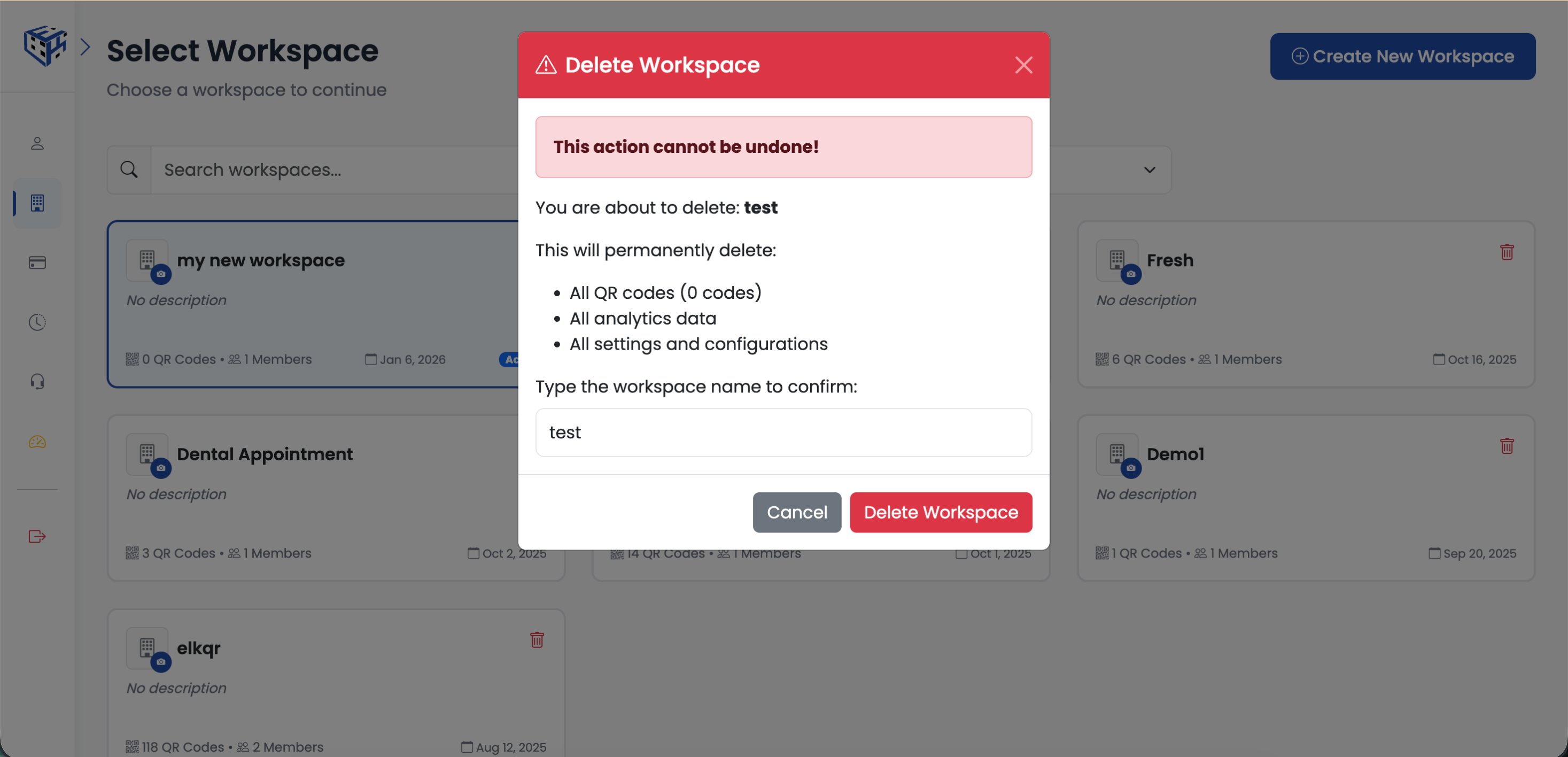
Type the workspace name to confirm
Click Delete Workspace
Once you've typed the name correctly, the Delete Workspace button will become active. Click it to permanently delete the workspace.
What Gets Deleted
| Item | Status |
|---|---|
| All QR codes | Permanently deleted - links stop working |
| Folders | Permanently deleted |
| Uploaded files | Permanently deleted |
| Analytics data | Permanently deleted - export first if needed |
| Team member access | Revoked immediately |
| Custom domains | Unlinked - can be used elsewhere |
Note
Only workspace owners can delete workspaces. Team members cannot delete workspaces - if they want to leave, they should ask the owner to remove them from the Team tab.
Still facing difficulties?
Click here to contact our support team for assistance