Build Any Page You Want
A startup is launching at a trade show. They need a page with their pitch, demo video, founder bios, and a signup button. No time to hire a developer. They open the Page Builder, type / to open the command menu, insert a heading, drop in a YouTube video, add a two-column layout for founder bios, and insert a styled CTA button. 15 minutes later, their page is live. They print QR codes on flyers and collect 200 signups at the show.
Page Builder QR codes let you build fully custom pages with a rich text editor. No coding needed. Type / to access all content blocks — headings, lists, images, videos, tables, buttons, columns, callouts, and more. Just start typing and format as you go.
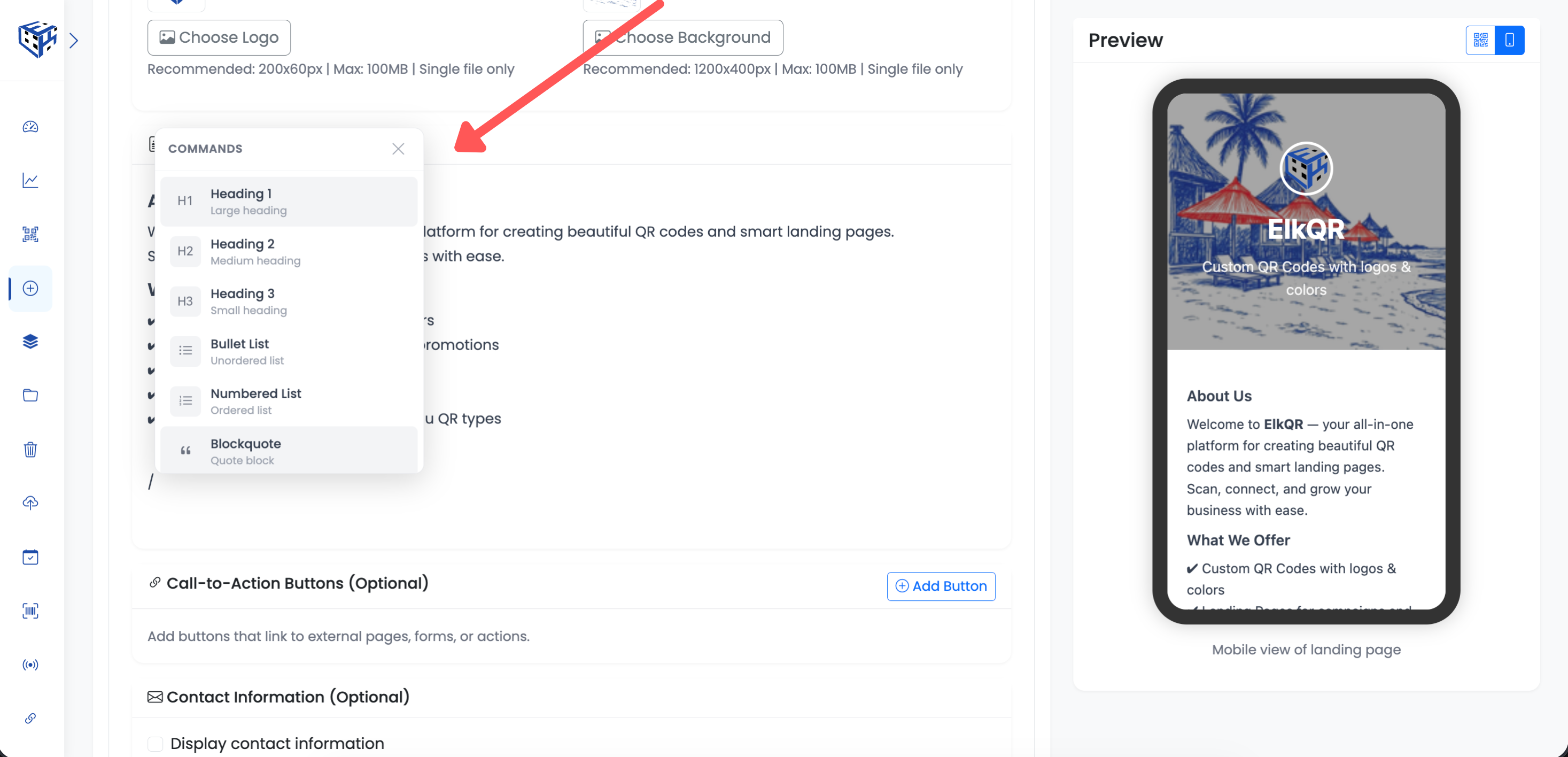
Rich text editor with slash command menu
What Visitors See
A beautiful, mobile-friendly page with exactly the content you designed. Your layout, your images, your call-to-action buttons — fully custom with no templates.
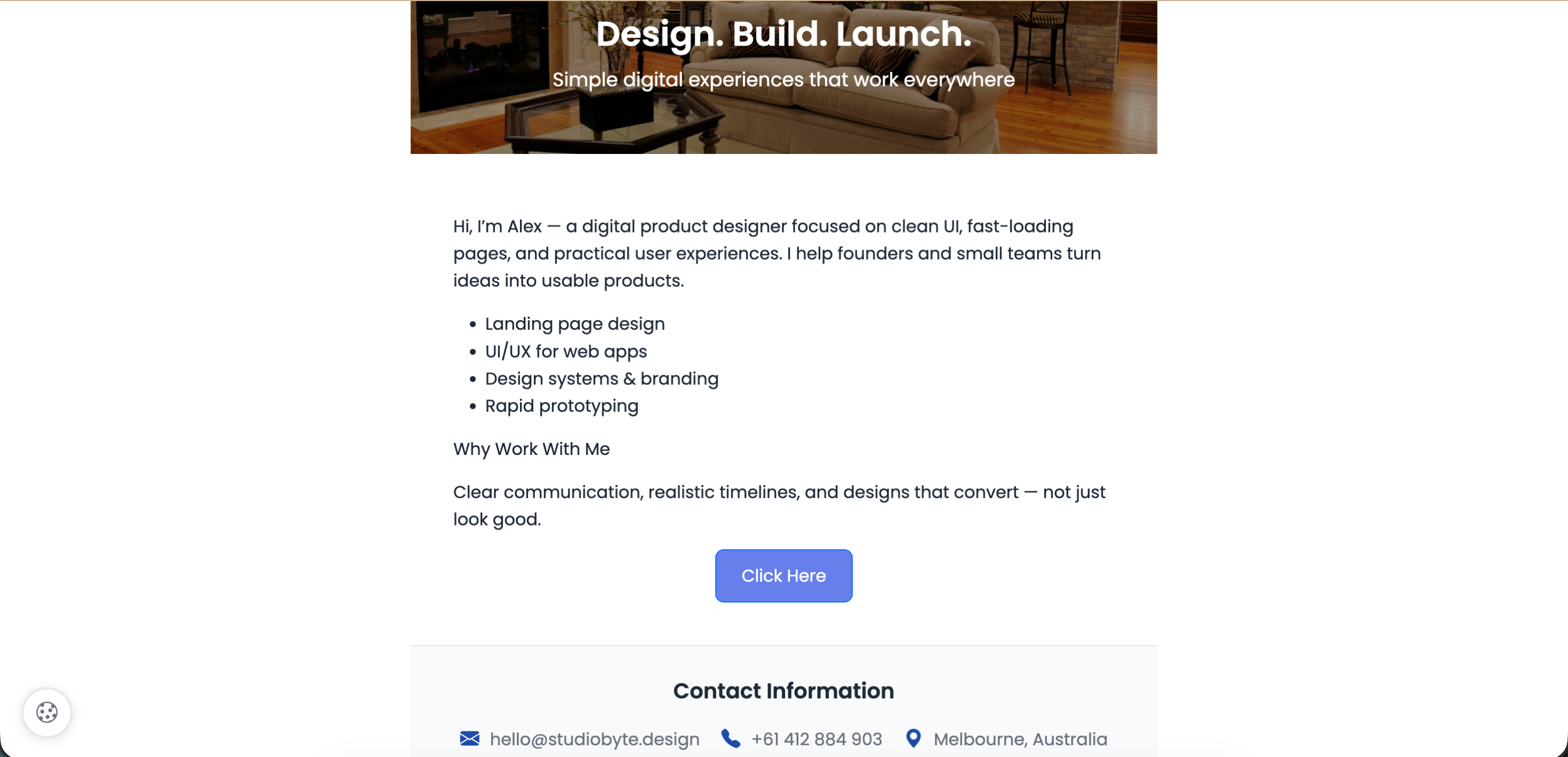
What Visitors See
Header Section
| Field | Description | Limit |
|---|---|---|
| Page Title* | Main headline | 100 characters |
| Subtitle | Tagline or subheadline | 200 characters |
| Logo | Your logo image | 200x60px, 20MB |
| Header Background | Banner image | 1200x400px, 20MB |
How the Editor Works
The Page Builder uses a rich text editor. Start typing on any line, or press / (slash) to open the command menu with all available content blocks. The command menu appears right where your cursor is — scroll through the list or type to filter.
Slash Commands
Press / on any empty line to open the command menu. All content blocks are available from this single menu.
| Command | What It Does |
|---|---|
| Heading 1 | Large heading for main sections |
| Heading 2 | Medium heading for subsections |
| Heading 3 | Small heading for sub-subsections |
| Bullet List | Unordered list with bullet points |
| Numbered List | Ordered list with numbers |
| Blockquote | Indented quote block |
| Code Block | Syntax-highlighted code snippet |
| Horizontal Rule | Divider line between sections |
| Image | Insert image from file manager or URL |
| Table | Insert a 3×3 table with header row. Right-click to add/remove rows and columns |
| Video | Embed a YouTube or Vimeo video |
| Button | Styled CTA button with text, URL, and color. Choose from preset styles (Primary, Secondary, Success, Danger) or pick a custom color |
| Columns | Two-column side-by-side layout |
| Callout | Info, warning, success, or error callout box with icon |
Text Formatting
Select any text to format it. The editor supports bold, italic, underline, strikethrough, links, text color, and highlight. You can also use keyboard shortcuts — Ctrl+B for bold, Ctrl+I for italic, Ctrl+U for underline.
CTA Buttons
Add call-to-action buttons below your page content. These are separate from the in-editor buttons and appear as a dedicated section. Each button has customizable text, URL, and style.
| Style | Color |
|---|---|
| Primary | Blue |
| Secondary | Gray |
| Success | Green |
| Danger | Red |
Contact Information
Optionally display contact details on your page.
| Field | Description |
|---|---|
| Your email address | |
| Phone | Your phone number |
| Address | Your physical address |
Social Media Links
Optionally display social media icons linking to your profiles.
| Platform | Example |
|---|---|
| facebook.com/yourpage | |
| instagram.com/yourprofile | |
| twitter.com/yourhandle | |
| linkedin.com/in/yourprofile | |
| YouTube | youtube.com/@yourchannel |
| TikTok | tiktok.com/@yourprofile |
Use Cases
| Use Case | Example |
|---|---|
| Product launches | New product announcement pages |
| Event promotions | Conference or webinar signups |
| Sales campaigns | Limited time offers, flash sales |
| Lead generation | Newsletter signups, contact forms |
| Personal branding | Portfolio, resume, bio pages |
| Documentation | Quick reference guides, how-to pages |
| Menus & pricing | Restaurant menus, service pricing tables |
Tip
Type / on any empty line to see all available blocks. Use the Table block for pricing or comparison charts, and the Callout block to highlight important information.
Still facing difficulties?
Click here to contact our support team for assistance