Bookings While You Work
A hairstylist is cutting hair when a client walks in wanting to book next week. She points to a QR code on the counter. The client scans, sees available slots, picks Thursday 2pm, enters their details, and gets a confirmation email. The stylist never stopped cutting hair. That night, she checks her dashboard - 8 new bookings came in while she worked.
Booking QR codes let customers book appointments 24/7. They see your services, pick a time slot, and receive confirmation emails. You get notified instantly.
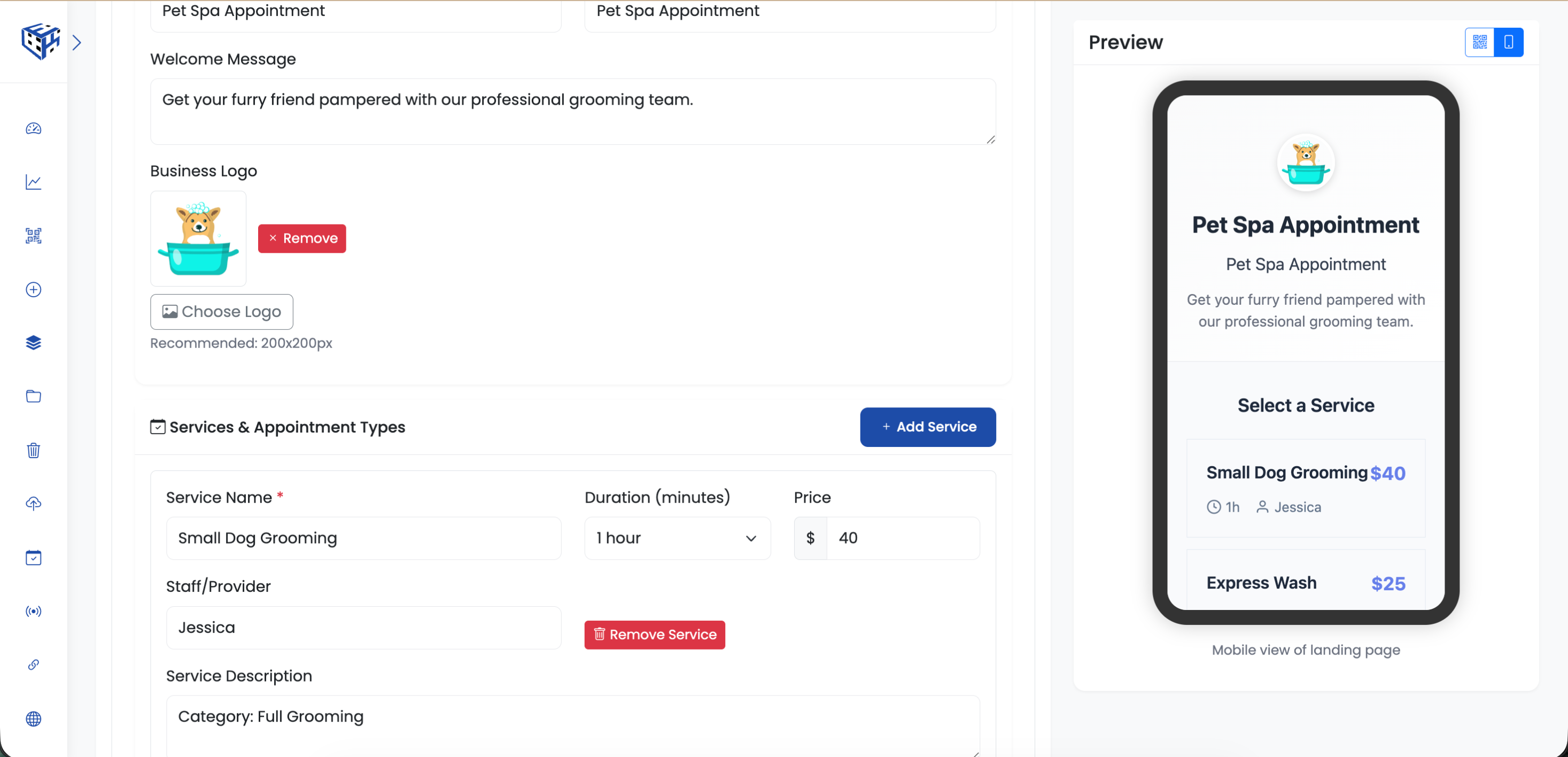
Set up services and availability
What Visitors See
A booking page with your services, available time slots based on your schedule, and a form to enter their details. They get a confirmation email instantly. You get notified of new bookings.
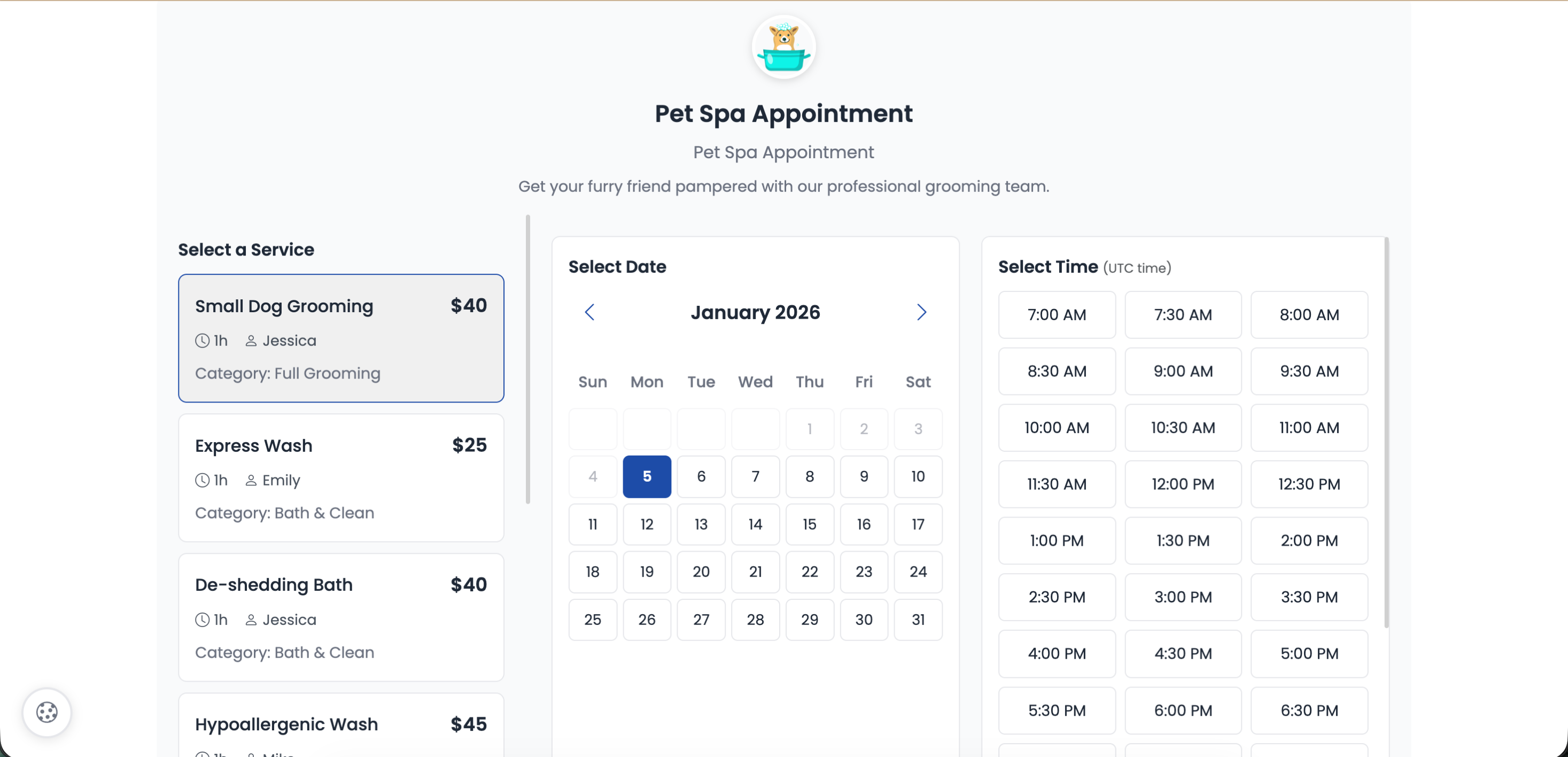
Customers select service, date, and time
Business Information
| Field | Description | Limit |
|---|---|---|
| Business Name* | Your business name | 100 characters |
| Booking Page Title* | Page headline | 100 characters |
| Welcome Message | Instructions for customers | 300 characters |
| Business Logo | Your logo | 200x200px |
Services & Appointments
Add multiple services customers can book.
| Field | Description |
|---|---|
| Service Name* | Name of the service |
| Duration | 15min, 30min, 45min, 1hr, 1.5hrs, 2hrs, 3hrs |
| Price | Service cost ($) |
| Staff/Provider | Who provides the service |
| Description | Service details |
Availability Settings
| Setting | Options |
|---|---|
| Business Hours | Set open/close times for Mon-Sun |
| Timezone | 20+ timezones worldwide |
| Allow Visitor Timezone | Let visitors see times in their timezone |
| Time Slot Intervals | 15 minutes, 30 minutes, 1 hour |
| Buffer Time | 0, 5, 10, 15, 30 minutes between appointments |
| Advance Booking | 1 week, 2 weeks, 1 month, 2 months, 3 months ahead |
| Minimum Notice | No minimum, 1hr, 2hrs, 4hrs, 1 day |
| Blocked Dates | Add holidays or vacation days |
Customer Form Fields
| Field | Options |
|---|---|
| Full Name | Enable/Disable, Required/Optional |
| Enable/Disable, Required/Optional | |
| Phone | Enable/Disable, Required/Optional |
| Special Requests/Notes | Enable/Disable |
| Number of Attendees | Enable/Disable |
Email Notifications
| Feature | Description |
|---|---|
| Custom SMTP | Send emails from your domain |
| Confirmation Email | Auto-send to customers after booking |
| Reminder Email | Send 24 hours before appointment |
| Business Notification | Receive email when bookings are made |
Webhook Integration
Send booking data to your CRM, Zapier, or any third-party service automatically.
| Field | Description |
|---|---|
| Webhook URL | Your endpoint (e.g., https://hooks.zapier.com/...) |
| Webhook Secret | Sent as X-Webhook-Secret header |
| Custom Headers | JSON format for additional headers |
Example webhook payload:
{
  "event": "booking.created",
  "timestamp": "2024-01-15T10:30:00Z",
  "data": {
    "name": "John Doe",
    "email": "john@example.com",
    "phone": "+1234567890",
    "service": "Haircut & Style",
    "visitor_date": "2024-01-20",
    "visitor_time": "14:30",
    "visitor_timezone": "Asia/Kolkata",
    "business_timezone": "America/New_York",
    "utc_datetime": "2024-01-20T09:00:00Z",
    "duration": 30,
    "price": 50,
    "staff": "Sarah Johnson",
    "notes": "First time customer",
    "number_of_attendees": 2,
    "payment_method": "Pay at appointment",
    "qrcode_id": 123,
    "booking_id": "BK-20240115-001",
    "business_name": "Elite Salon & Spa"
  }
}Payment Settings
| Feature | Description |
|---|---|
| Require Payment | Toggle on to require payment at booking |
| Payment Instructions | Instructions for customers (e.g., Pay at appointment) |
Use Cases
| Use Case | Example |
|---|---|
| Salons & Spas | Haircuts, massages, treatments |
| Medical & Dental | Doctor appointments, checkups |
| Consultants | Business consultations, coaching |
| Fitness | Personal training, classes |
| Photography | Photo shoots, sessions |
Tip
Use webhooks to auto-create CRM records or Zapier automations when bookings come in. Send booking data to your existing tools.
Still facing difficulties?
Click here to contact our support team for assistance