Control how your QR code links appear when shared on Facebook, LinkedIn, Twitter, and other social platforms.
Create or Edit a QR Code
Create a new QR code, or click on an existing QR code to edit it.
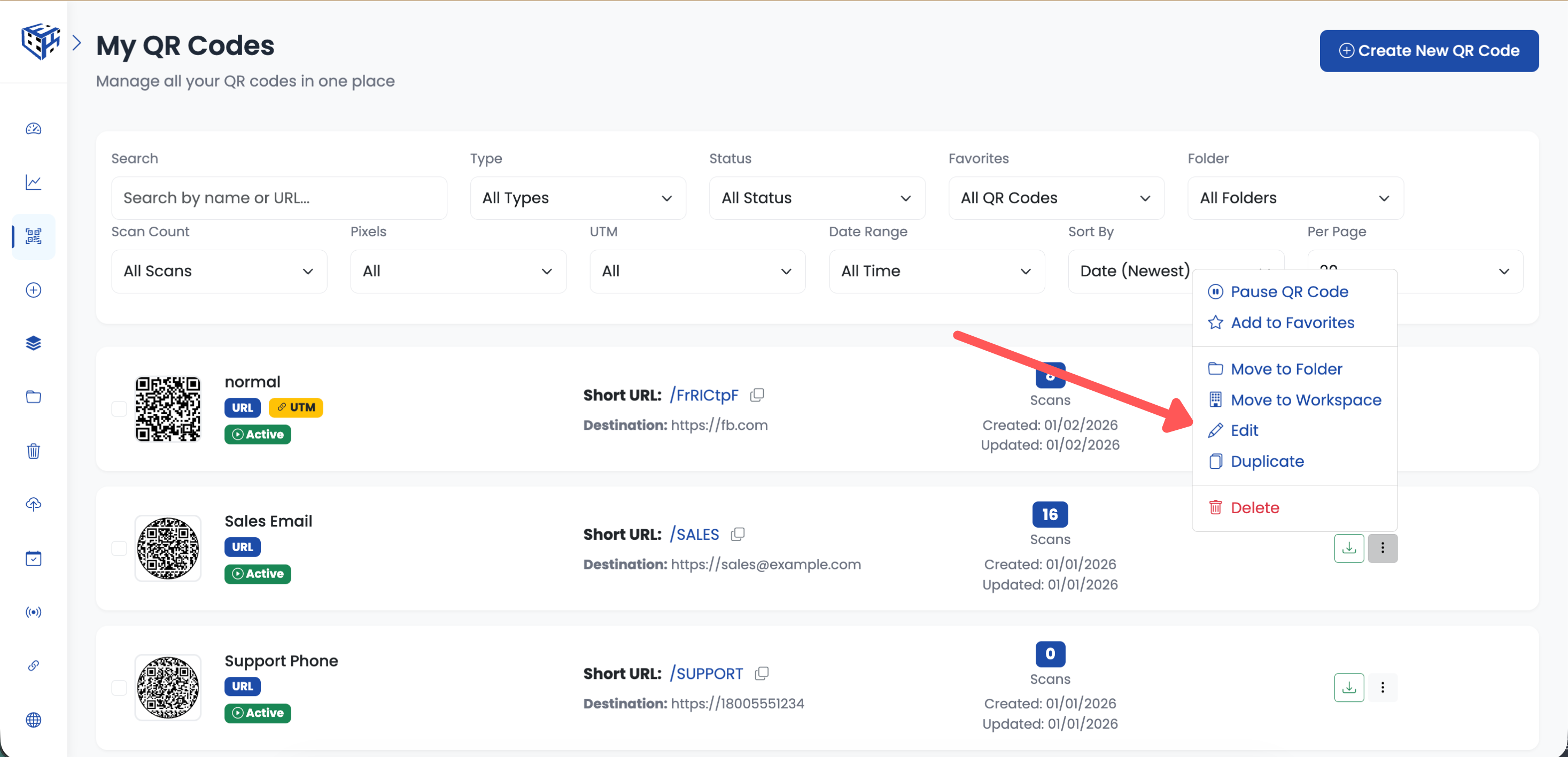
Create new or edit existing QR code
Go to Advanced Settings
Click on the Advanced Settings section to expand it.
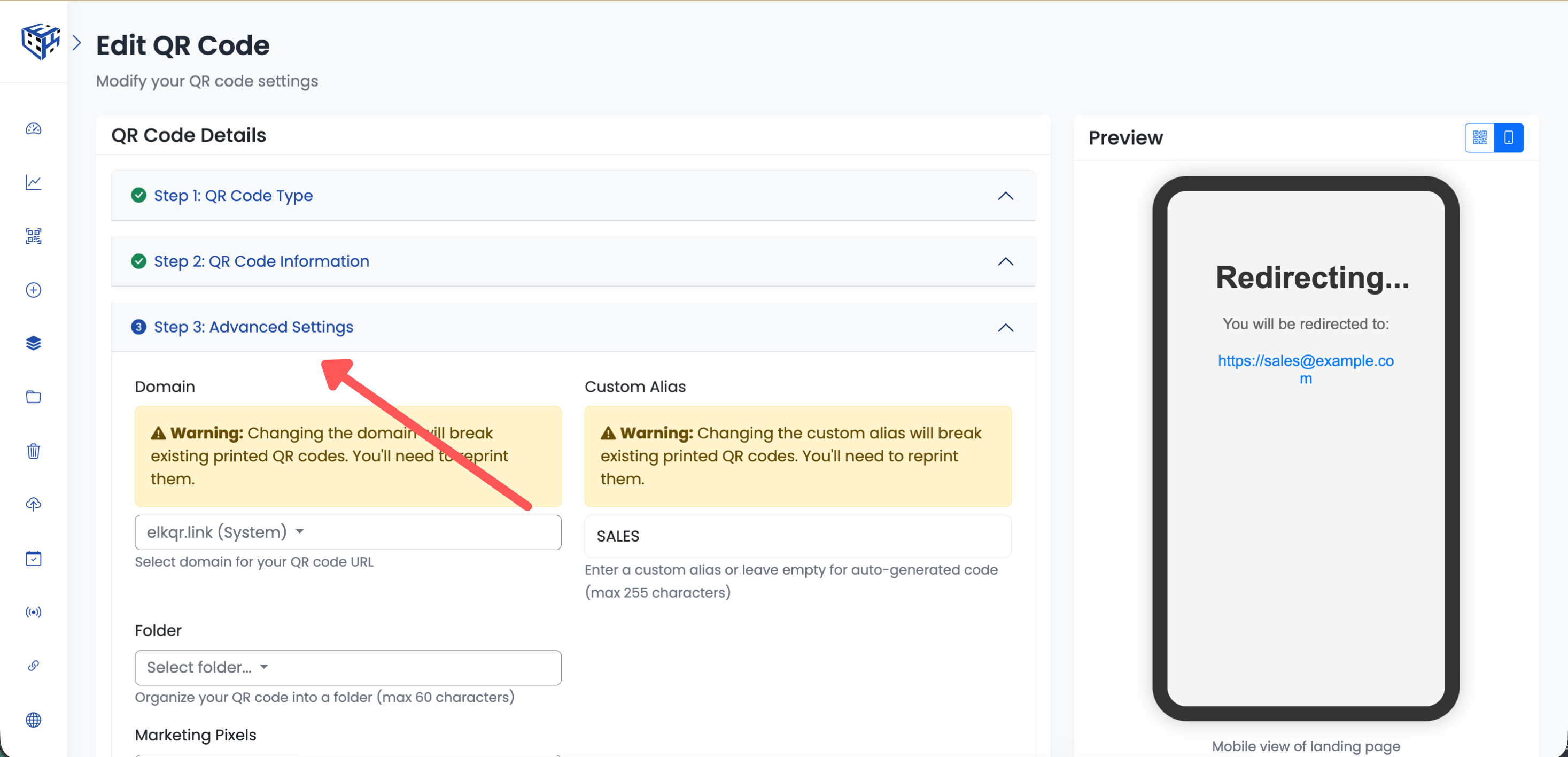
Go to Advanced Settings section
Find Social Media Preview
Scroll down to find the "Social Media Preview" section.
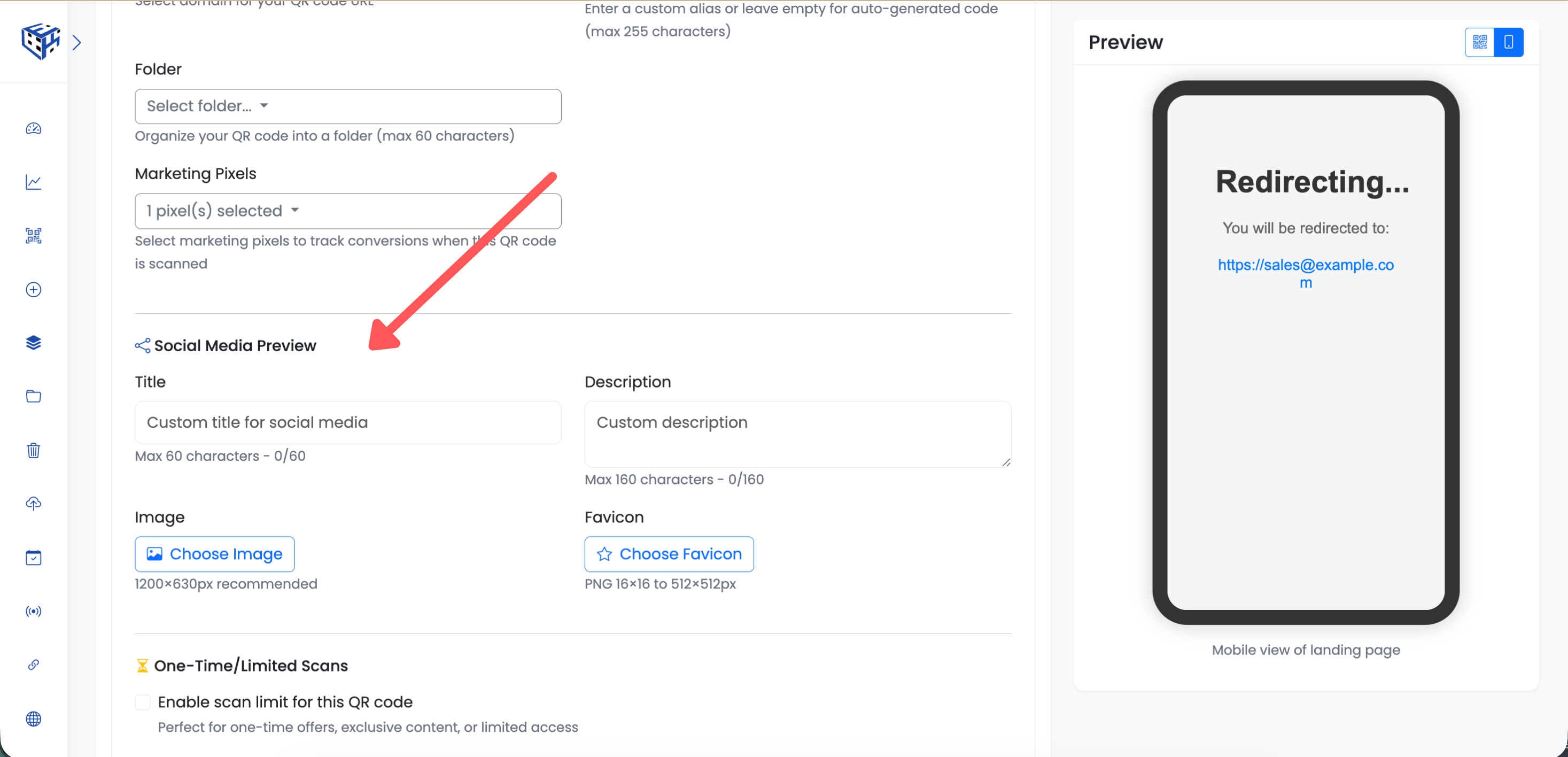
Find the Social Media Preview section
Fill in the Fields
Fill in the meta tag fields:
| Field | What to Enter |
|---|---|
| Title | Headline for the preview (max 60 characters) |
| Description | Text below the headline (max 160 characters) |
| Image | Click "Choose Image" to upload (1200×630px recommended) |
| Favicon | Click "Choose Favicon" to upload (optional, 16×16 to 512×512px) |
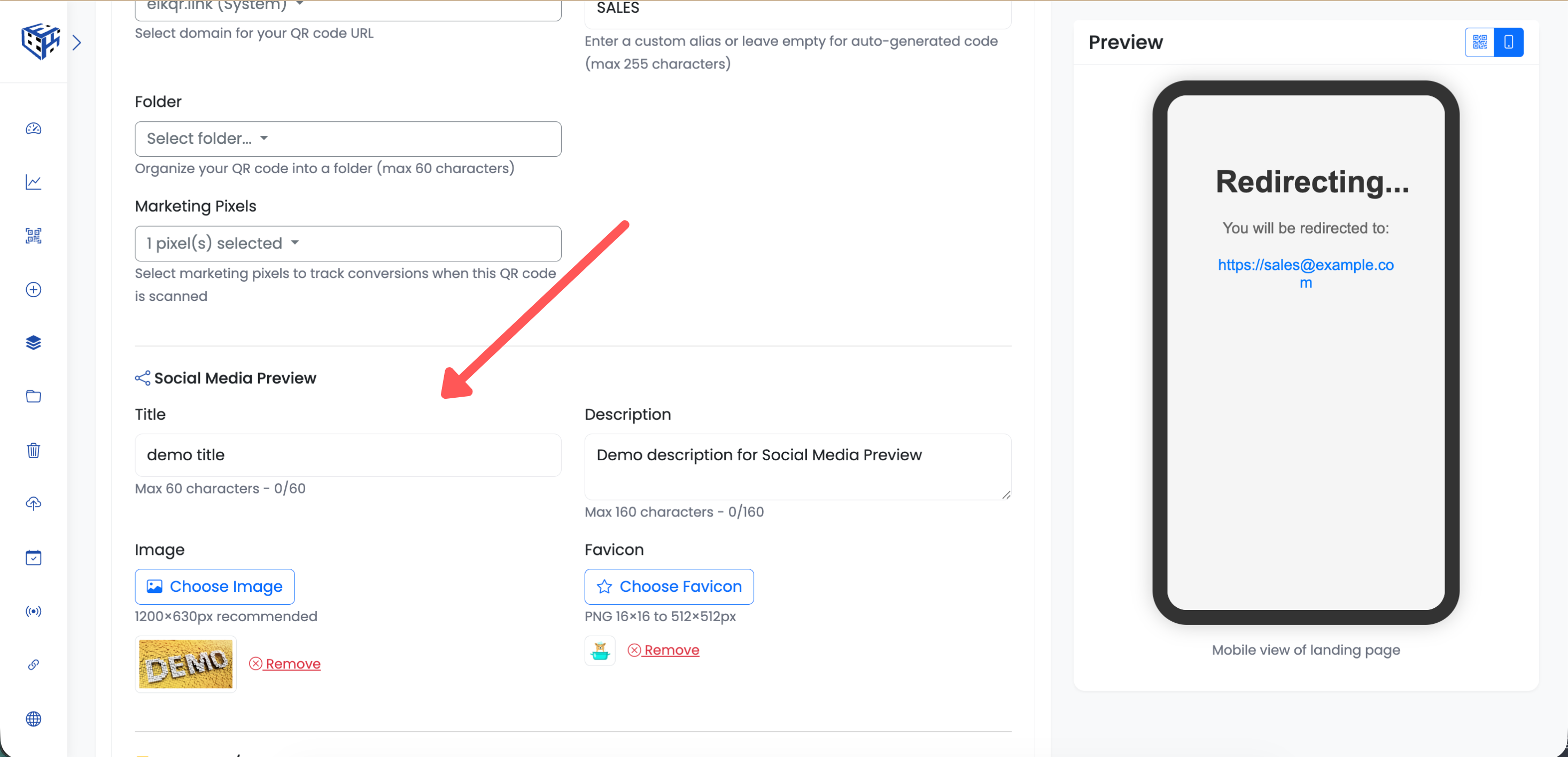
Fill in Title, Description, Image, and Favicon
Save Your QR Code
Click "Create QR Code" (for new) or "Update" (for existing) to save your changes.
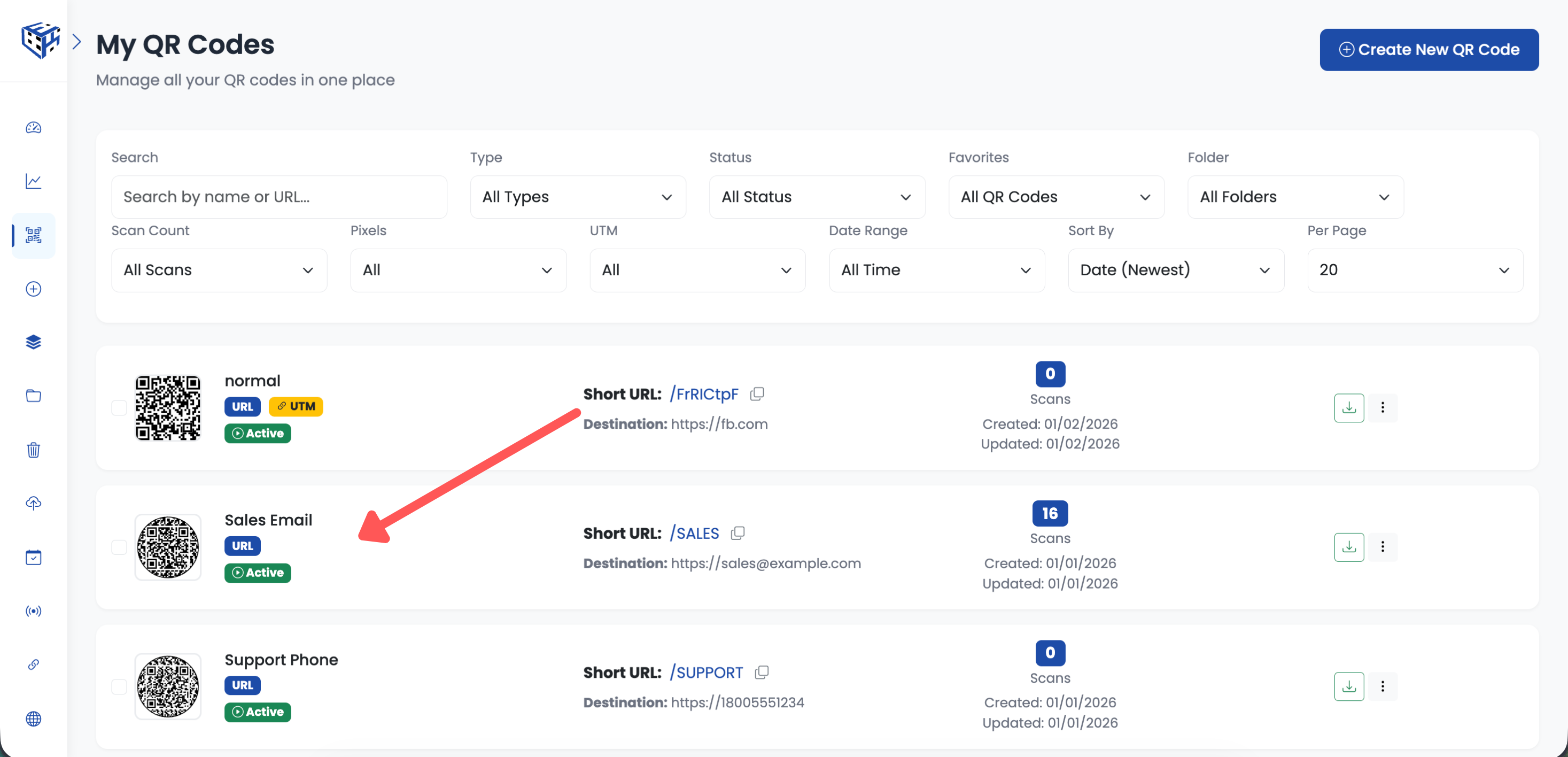
Save to apply meta tags
What People See
When someone shares your QR code link on social media, they'll see your custom title, description, and image instead of a generic URL.
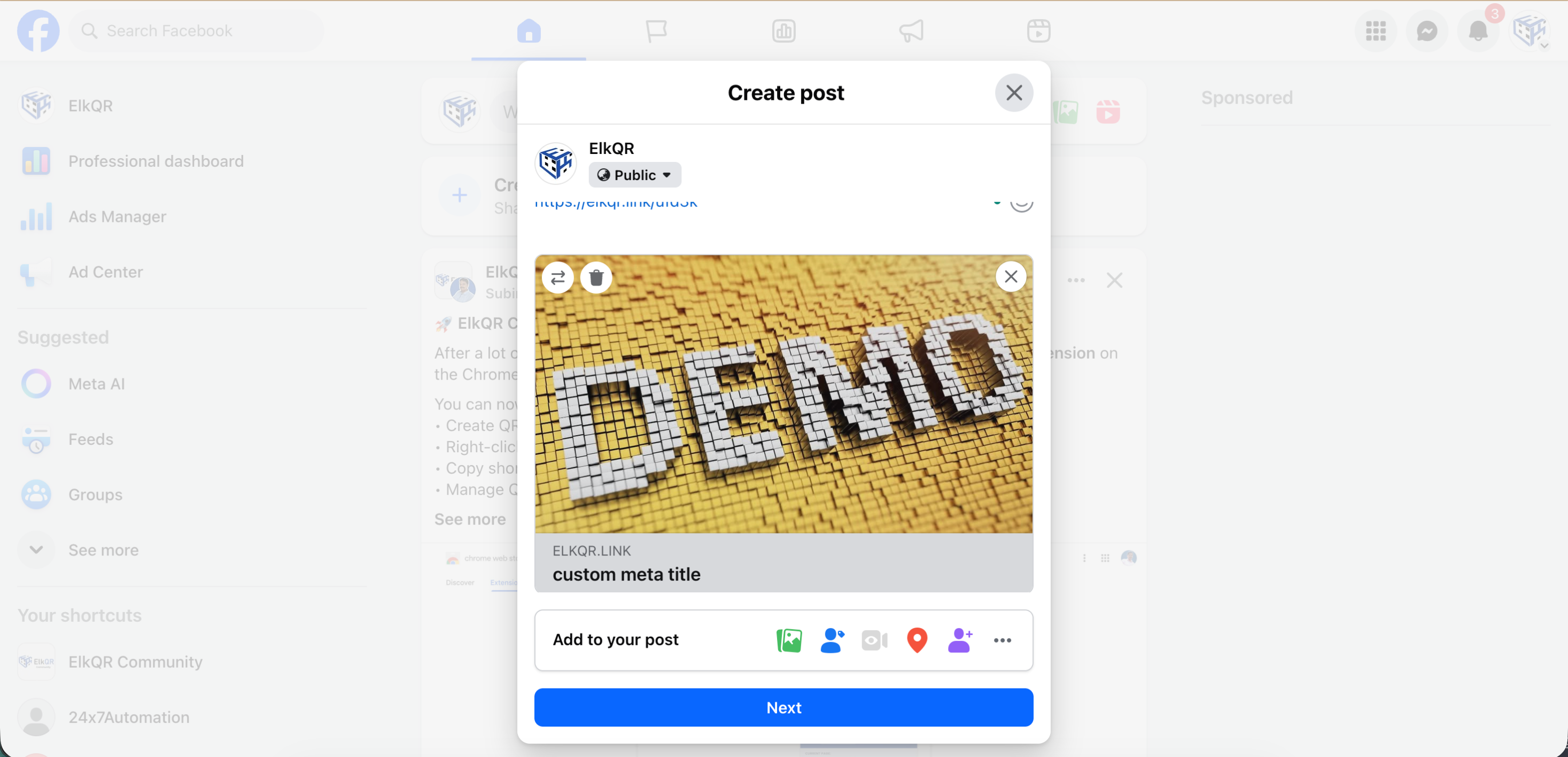
Your customized preview on social media
Tip
Test your meta tags by sharing the link in a private message to yourself on Facebook or LinkedIn.
- Meta Tags & Social Sharing - Learn more about meta tags
Still facing difficulties?
Click here to contact our support team for assistance