Control Every URL
Someone visits qr.yourbrand.com directly (without a short code). What do they see? A blank page? An error? With redirects configured, they land on your homepage. Someone scans a deleted QR code. Instead of a generic error, they see your custom 'Link Not Found' page with your branding and a way to contact you.
Two Types of Redirects
| Redirect | When It Triggers | Example |
|---|---|---|
| Root Redirect | Someone visits your domain without a path (qr.brand.com) | Redirect to your homepage |
| 404 Redirect | Someone visits an invalid or deleted short link | Show custom error page |
Root Redirect Examples
When someone visits qr.yourbrand.com directly (not qr.yourbrand.com/something), they get redirected to your Root Redirect URL.
| Use Case | Root Redirect URL |
|---|---|
| Send to main website | https://www.yourbrand.com |
| Show QR info page | https://yourbrand.com/our-qr-codes |
| Contact page | https://yourbrand.com/contact |
| Product catalog | https://yourbrand.com/products |
404 Redirect Examples
When someone scans a deleted QR code or types an invalid short link, they get redirected to your 404 Redirect URL.
| Use Case | 404 Redirect URL |
|---|---|
| Branded error page | https://yourbrand.com/link-not-found |
| Help center | https://yourbrand.com/help |
| Homepage fallback | https://www.yourbrand.com |
| Support contact | https://yourbrand.com/support |
How to Configure Redirects
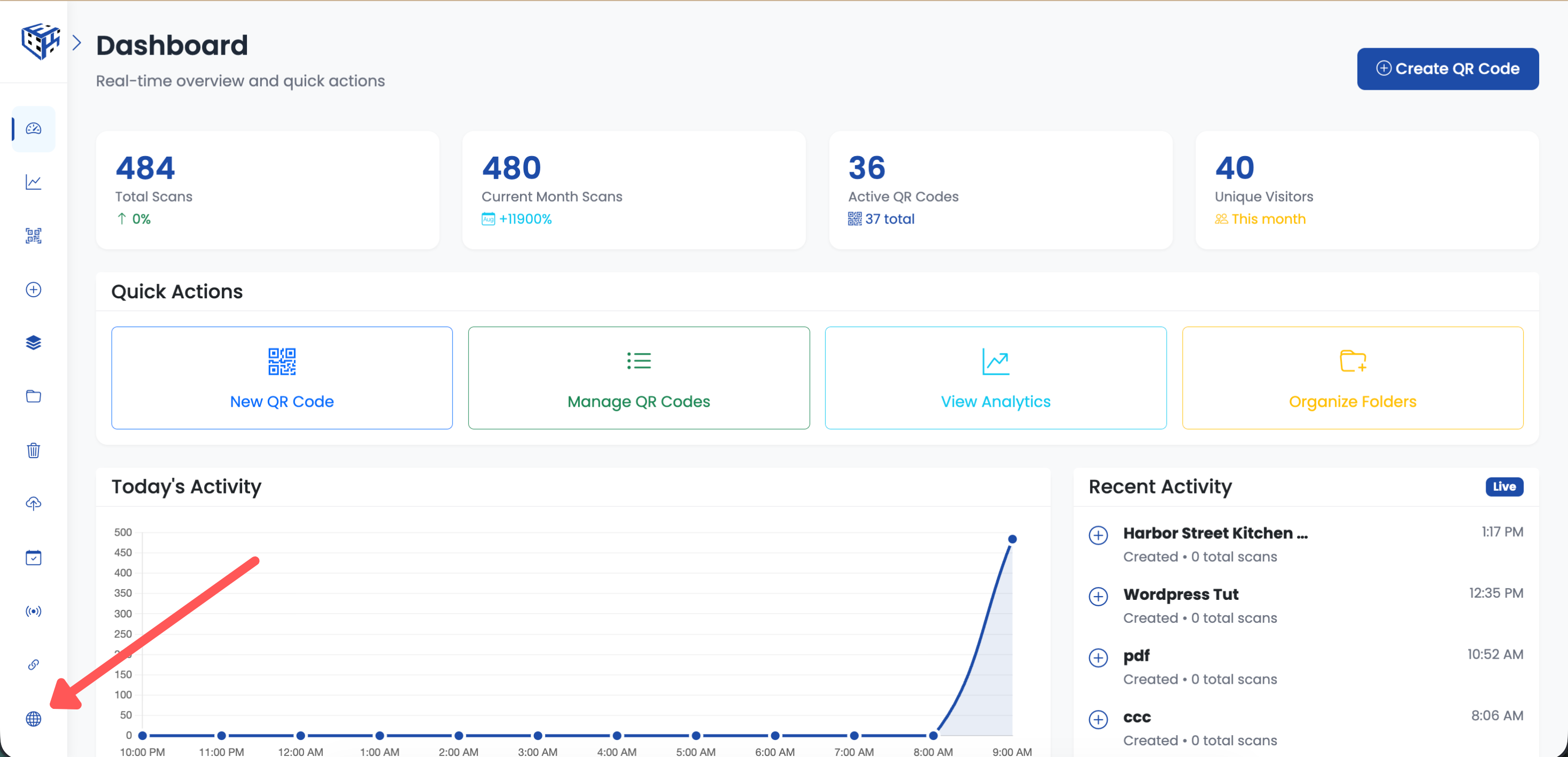
Click Custom Domains in the left sidebar
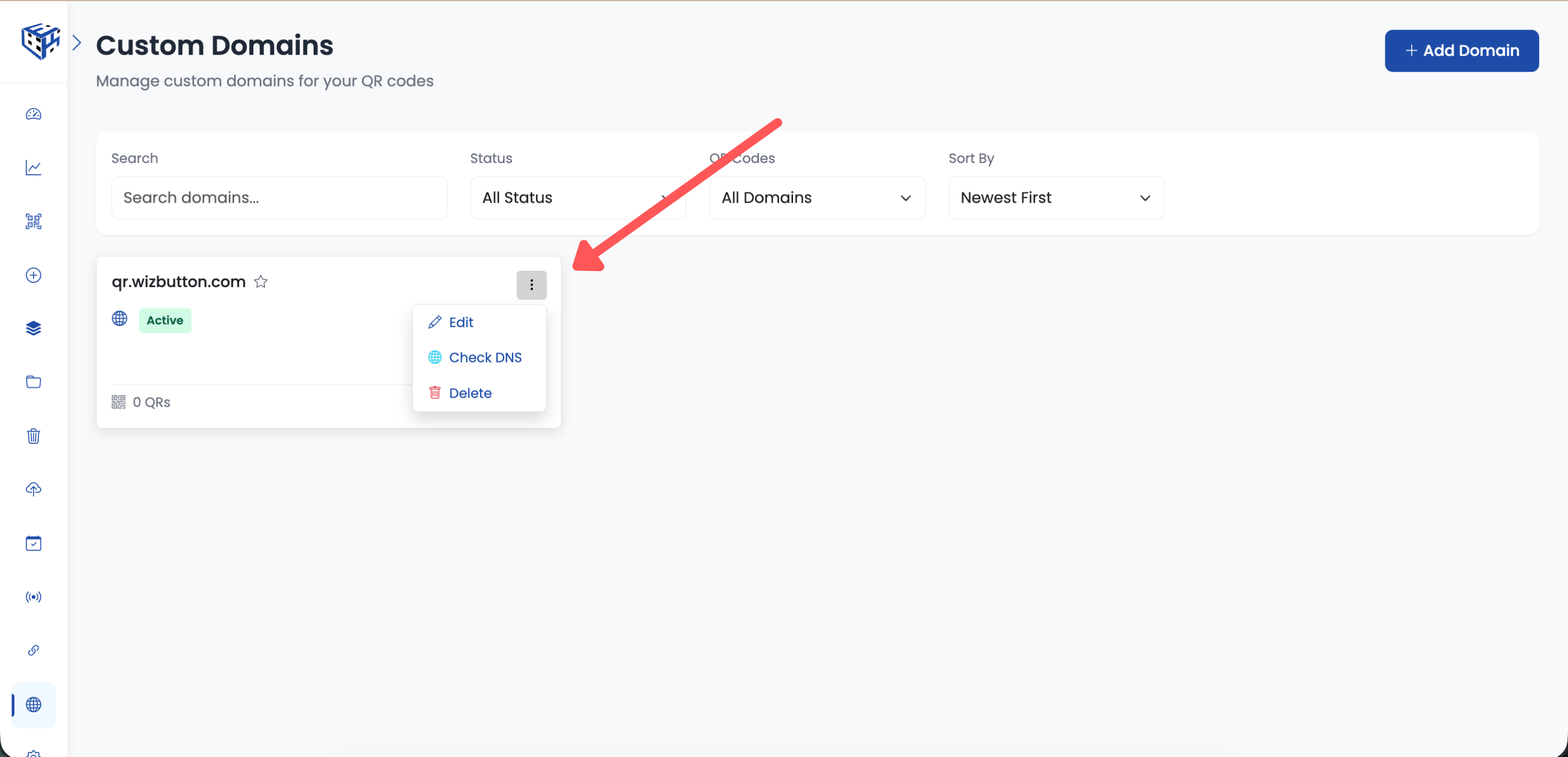
Click the three-dots menu (⋮) and select Edit
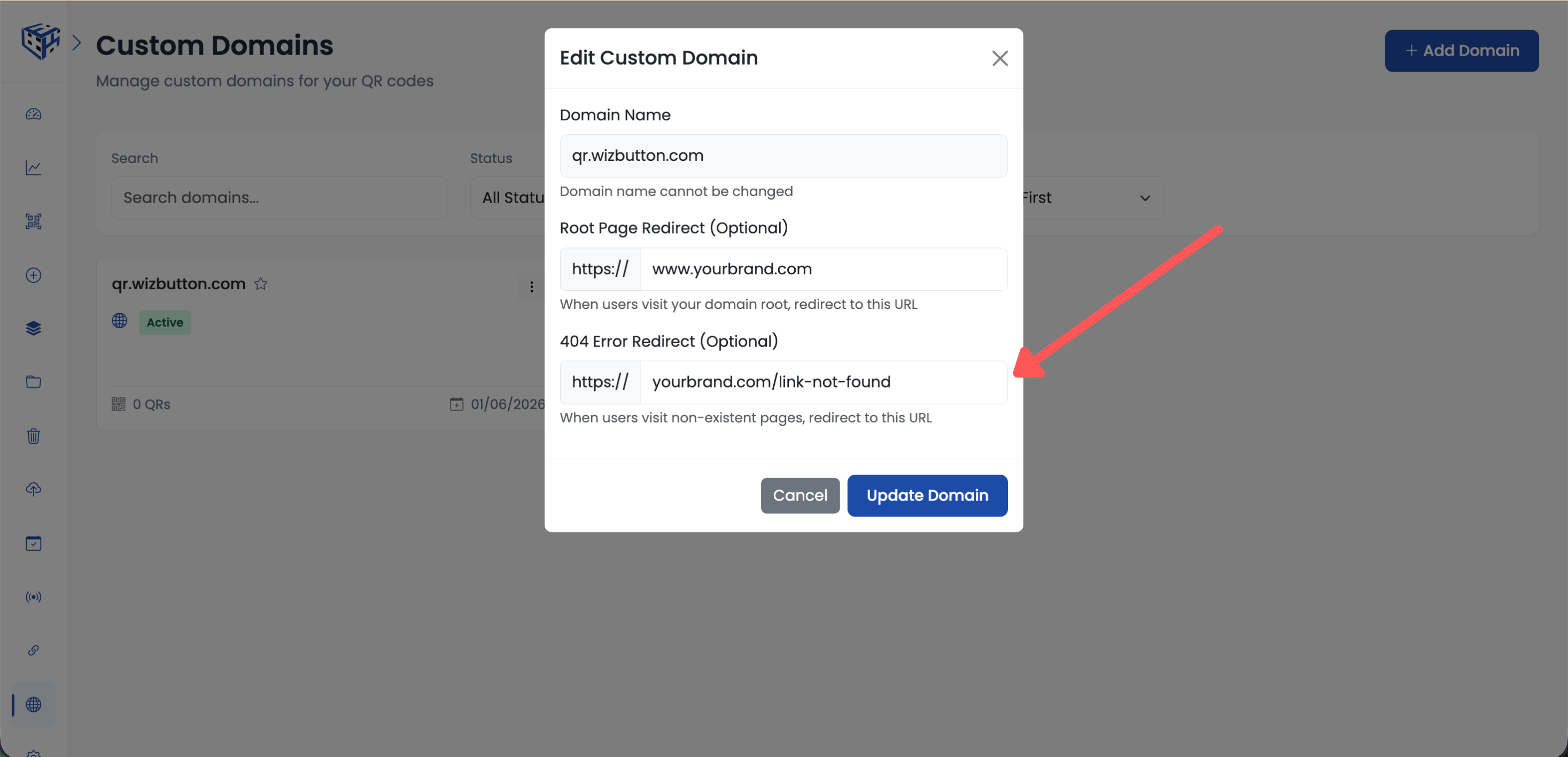
Enter your redirect URLs and click Save
Tip
Create a custom 404 page on your website that matches your branding. Include a search bar, popular links, or contact information to help visitors find what they need.
Still facing difficulties?
Click here to contact our support team for assistance